
Resolume and TouchDesigner do not run on an iPad. Both download pages list macOS and Windows and nothing else, so the best VJ app for iPad is one of a dozen App Store apps, and they are built for quite different jobs. We checked ten of them against their App Store listings in September 2026, sorted them by the job each one does best, and put ImmerGround, which we make, in the slot where it fits rather than at the top.
How this list was checked, and our bias
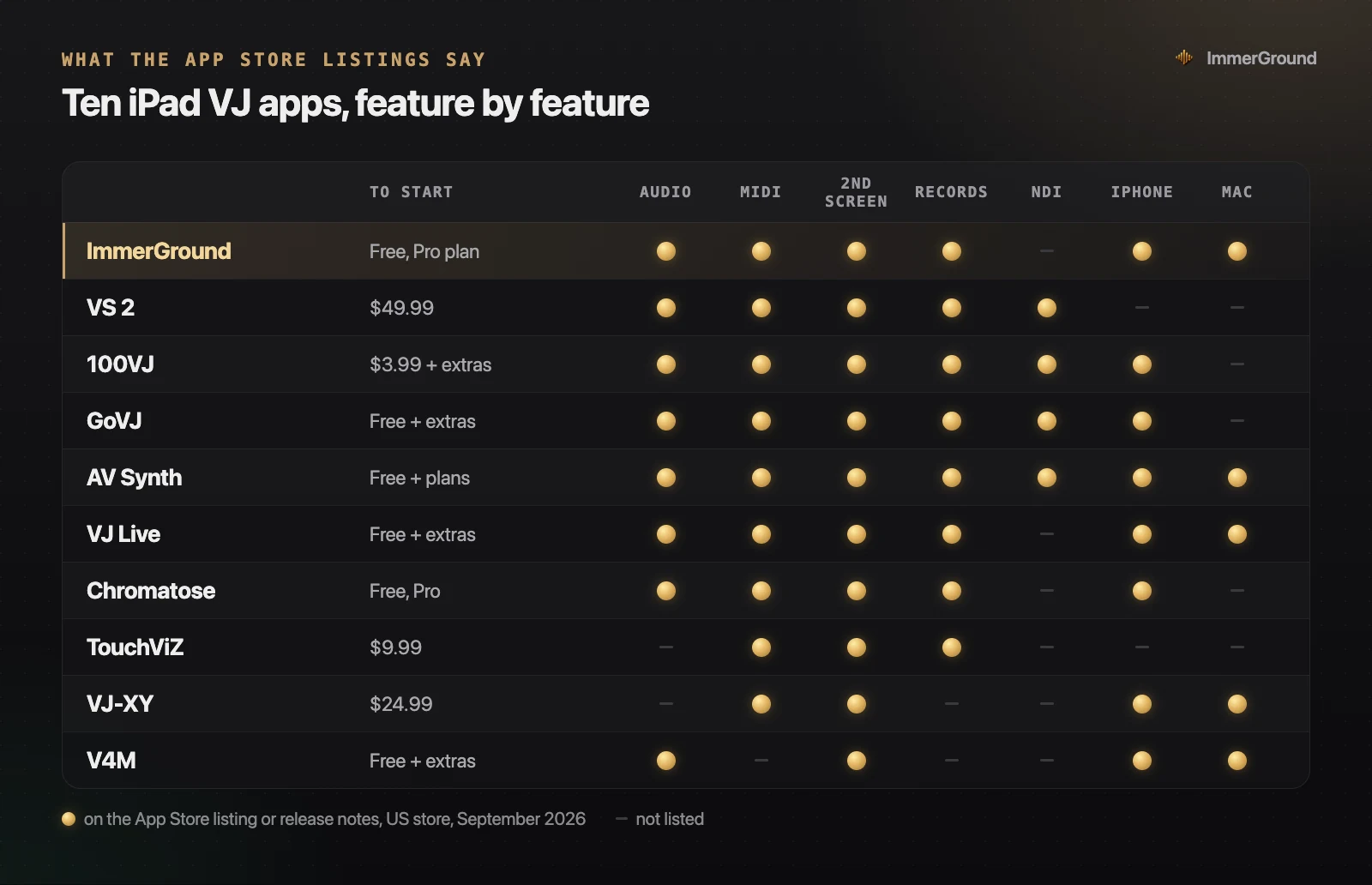
We make ImmerGround, so read this knowing that. To keep the comparison fair, every fact below comes from each app's own App Store listing and release notes in the US store, checked on 24 September 2026: the price, the devices it runs on, and whether its listing says it reacts to audio, takes MIDI, drives a second screen, records video or sends NDI to another computer.
Two limits are worth saying out loud. First, "not listed" means the listing does not mention a feature. It does not prove the feature is missing, and developers undersell about as often as they oversell. Second, we did not take every app through a live set, so this is not a review of how each one holds up on a stage. Star ratings are left out on purpose: most of these apps have fewer than fifty ratings in the US store, which tells you more about how new they are than about how good they are.
Prices change. The ones below are the US App Store prices on the day we checked, and in-app purchases are listed as the store shows them.
The ten apps at a glance
| App | Price to start | Built for | Runs on |
|---|---|---|---|
| ImmerGround | Free to download; Pro is $6.99 a week or $39.99 a year | Your own clip or photo reacting to the music and to MIDI, mapped by hand | iPhone, iPad and Mac |
| VS 2 (Imaginando) | $49.99, preset packs extra | A layered visual synth: shaders, text, images and video driven by audio and MIDI | iPad |
| 100VJ | $3.99, Premium extras | Clip and camera mixing with the most outputs on this list | iPhone and iPad |
| GoVJ | Free, in-app plans | A two-channel mixer with a crossfader | iPhone and iPad |
| AV Synth | Free, weekly or yearly plan | Up to five generative layers that follow the music | iPhone, iPad and Mac |
| VJ Live | Free, in-app purchases | Its own loops or your videos, with effects that follow the music | iPhone, iPad and Mac |
| Chromatose | Free, Pro upgrade | Generative visuals with MIDI clock sync | iPhone and iPad |
| TouchViZ | $9.99, nothing else to buy | A clip mixer with MIDI and OSC control | iPad |
| VJ-XY | $24.99 once | Clips and drawings played from MIDI like an instrument | iPhone, iPad and Mac |
| V4M | Free, Professional Plan extra | Two video channels with image and text layers | iPhone, iPad and Mac |
The chart and the table answer different questions. The chart is about features, and it shows how similar the lists look on paper: nearly everything takes MIDI and drives a second screen. The table is about what each app is actually for, and that is where they split into four groups.
If you want to mix clips live
This is classic VJing: a library of clips, two or more channels, a crossfader or layer opacity, effects on top, and a cable to the projector (our guide to a live visuals setup with an iPad and a projector covers that cable and the rest of the rig). Five apps on the list are built around it.
GoVJ
GoVJ is the plainest version of the idea: two channels and a crossfade between them, with a live camera as a source. Its listing covers the outputs a venue asks for, AirPlay and HDMI or VGA through an adapter, plus NDI for sending the picture to another computer, and it reacts to audio through the microphone. It takes MIDI over Bluetooth or USB and records what you play. It is free to download, and the in-app purchases run $5.99 a month, $19.99 a year or $29.99 for a lifetime licence, with a separate $39.99 purchase that removes a watermark. The last update was in October 2025.
100VJ
100VJ has the longest list of outputs and protocols here: HDMI, AirPlay and USB-C up to 4K, NDI, Syphon through a Mac running a companion app, ArtNet for DMX lighting, and projection mapping. It mixes video, images and GIFs with the camera, detects the BPM from the microphone and syncs effects to it, and takes both wired and network MIDI. It costs $3.99 with Premium purchases on top. The catch is your device's age: the current version needs iOS or iPadOS 26 or later.
TouchViZ
TouchViZ, from Hexler, is a one-price clip mixer for iPad: $9.99 with nothing else to buy, up to 125 clips across two channels, 54 effects, both cameras, an external screen through an adapter, live recording, and control over MIDI and OSC. Two things to know before buying: its listing says nothing about reacting to audio, and the last update shipped in January 2024.
VJ Live and V4M
VJ Live arranges its own loops or your videos with effects that follow the music. Its release notes add MIDI mapping and a second monitor, then a live camera, then video export, and the latest version shipped in August 2026. The listing does not say whether it hears the music through the microphone or from a file. It is free with in-app purchases from $2.99 a week to $49.99.
V4M mixes two video channels with image and text layers and sends them out through an AV adapter or an Apple TV. Its listing says the visuals react to music, but it lists no MIDI, no recording and no NDI, so it suits a set that runs itself more than one you play. It is free, with a $19.99 Professional Plan and content packs.
If you want generative visuals that follow the music
A visual synth does not start from your footage. It draws the picture itself, from shaders and shapes, and the music moves the parameters. Three apps on the list work this way.
VS 2
VS 2 from Imaginando is the deepest of the three: layers of shaders, text, images, video and live input, each reacting to audio and MIDI, with layers you can trigger from MIDI notes and room to write your own shaders. It drives an external display, records with audio, and its release notes add NDI. It costs $49.99 on iPad, with preset packs at $17.99 to $19.99. It is iPad only, and the desktop version, which also runs as a plugin inside a DAW, is a separate purchase. The first VS is still on the store at $24.99, but its listing says VS 2 replaces it.
Chromatose
Chromatose makes generative visuals that react to audio, sends them out over HDMI or AirPlay, and syncs to MIDI clock, which matters if a drum machine or a DAW is setting the tempo. Recent versions add camera input and recording. It is free to try, with Pro purchases at $5.99 and $49.99.
AV Synth
AV Synth stacks up to five generative layers that follow the music. Its release notes list an AUv3 version, Bluetooth MIDI with mapping, a second monitor and Ableton Link, and the paid plan, $6.99 a week or $39.99 a year, adds recording and NDI. It comes from the same developer as VJ Live, and it also runs on the Mac.
If you want your own footage to react
This is the group ImmerGround is in, and it is a different job from both of the above. You load a clip or a photo you care about, a dancer, a city at night, the cover of your single, and the music drives effects on it: the bass pushes the frame, the kick fires a strobe or a freeze, the high end splits the colour. Nothing is generated from scratch, so the result looks like your footage, edited to your track.
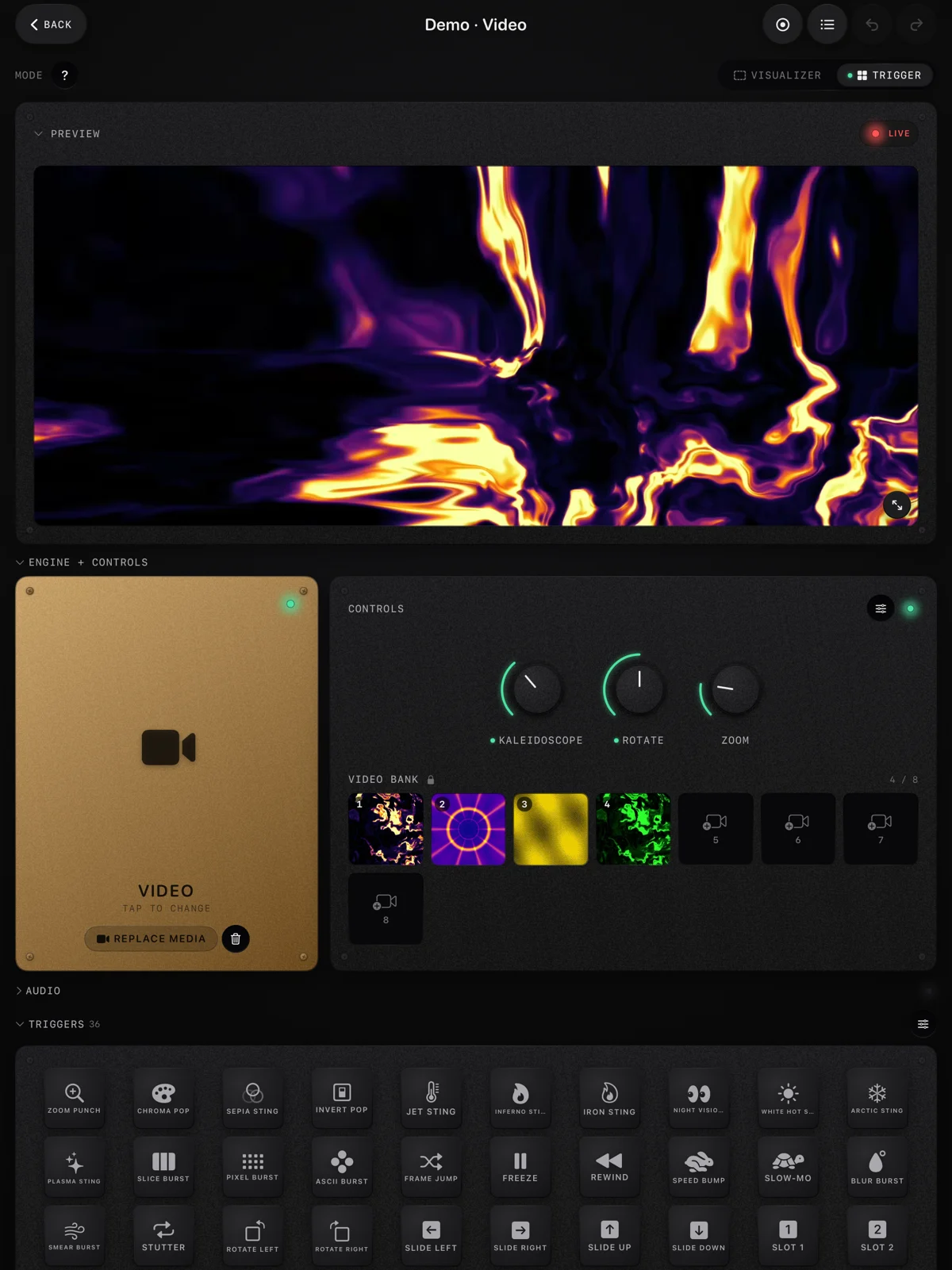
What ImmerGround does, in the terms of the chart. It listens to the microphone or plays an audio file (MP3, WAV, AAC or M4A), and it reads any class-compliant MIDI controller over USB-C or Bluetooth. Every sound signal and every knob, note and pad lands on one list of mappings, each with a curve, a range and smoothing. There are two engines, one for video and one for photos, each with a bank you flip through on cue. Two modes cover the jobs: Visualizer for one source that breathes with the music, and Trigger for a bank of looks played from MIDI pads, or with a tap on the pads on screen. Motion tracking keeps the effects locked on a subject as the camera moves. Every session records its event timeline and a real-time MP4, and you can re-render it later at another resolution. The output goes to a second screen over HDMI or AirPlay.
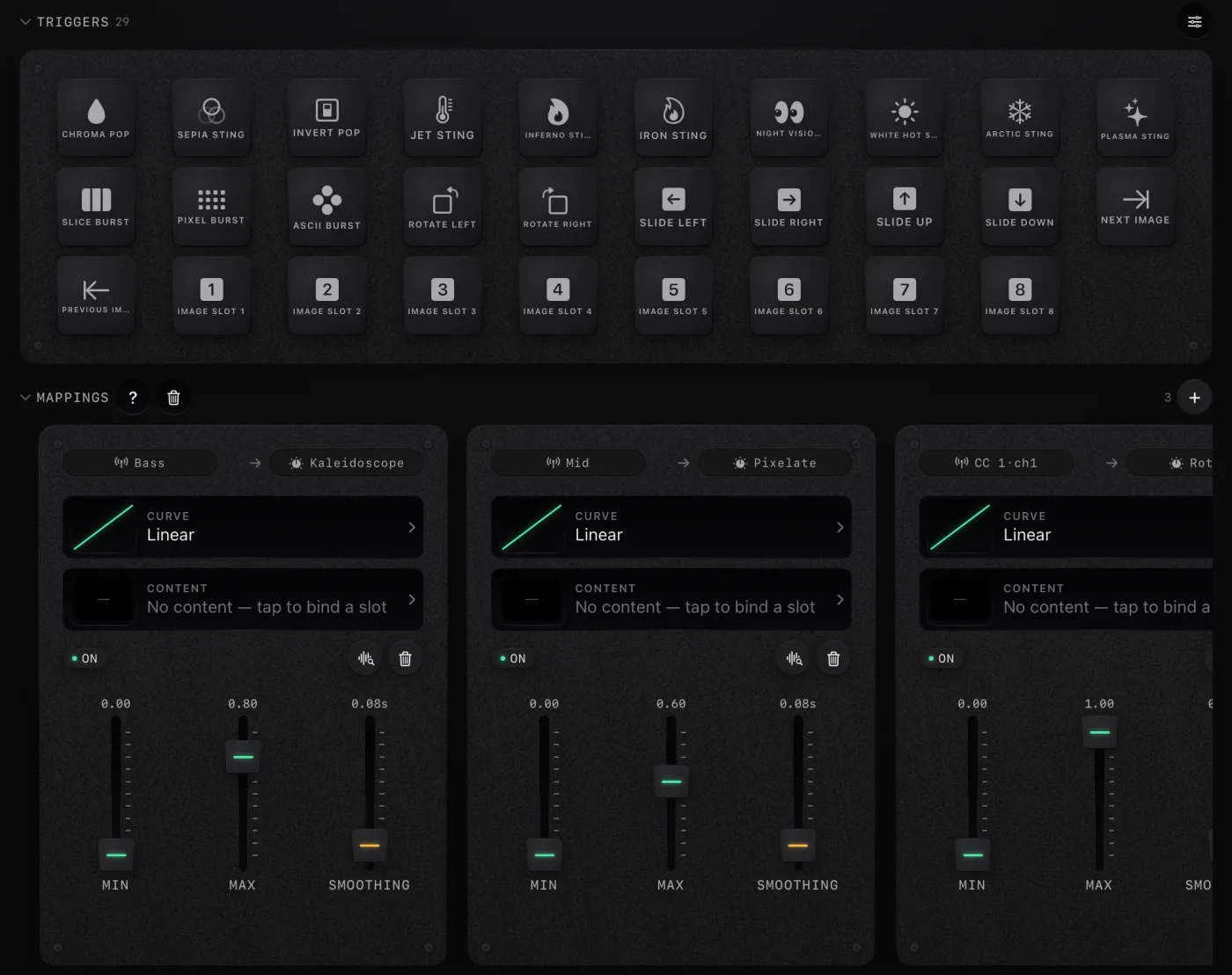
What it does not do, so you can rule it out quickly. ImmerGround is not a layer mixer: it is built around one clip or photo at a time, swapped from a bank by pads. It sends no NDI or Syphon, it does not run as a plugin, and it does not sync to Ableton Link. It has no generative synth of its own. If any of those is the job, VS 2, 100VJ or GoVJ above will serve you better.
It is free to download, and ImmerGround Pro is $6.99 a week or $39.99 a year. It is one App Store listing for iPhone, iPad and the Mac, so the phone in your pocket runs the same effects as the iPad on the booth.
If you want to play visuals like an instrument
VJ-XY is the odd one out, in a good way. It does not listen to the music at all. You import videos, photos and GIFs or draw your own clips, then play them from MIDI notes and CC over Bluetooth or USB-C, the way you would play a synth, and send the result to an external display. It costs $24.99 once, runs on iPhone, iPad and Apple Silicon Macs, and was first released in May 2026. It lists no recording and no NDI, so it is a performance tool, not a production one.
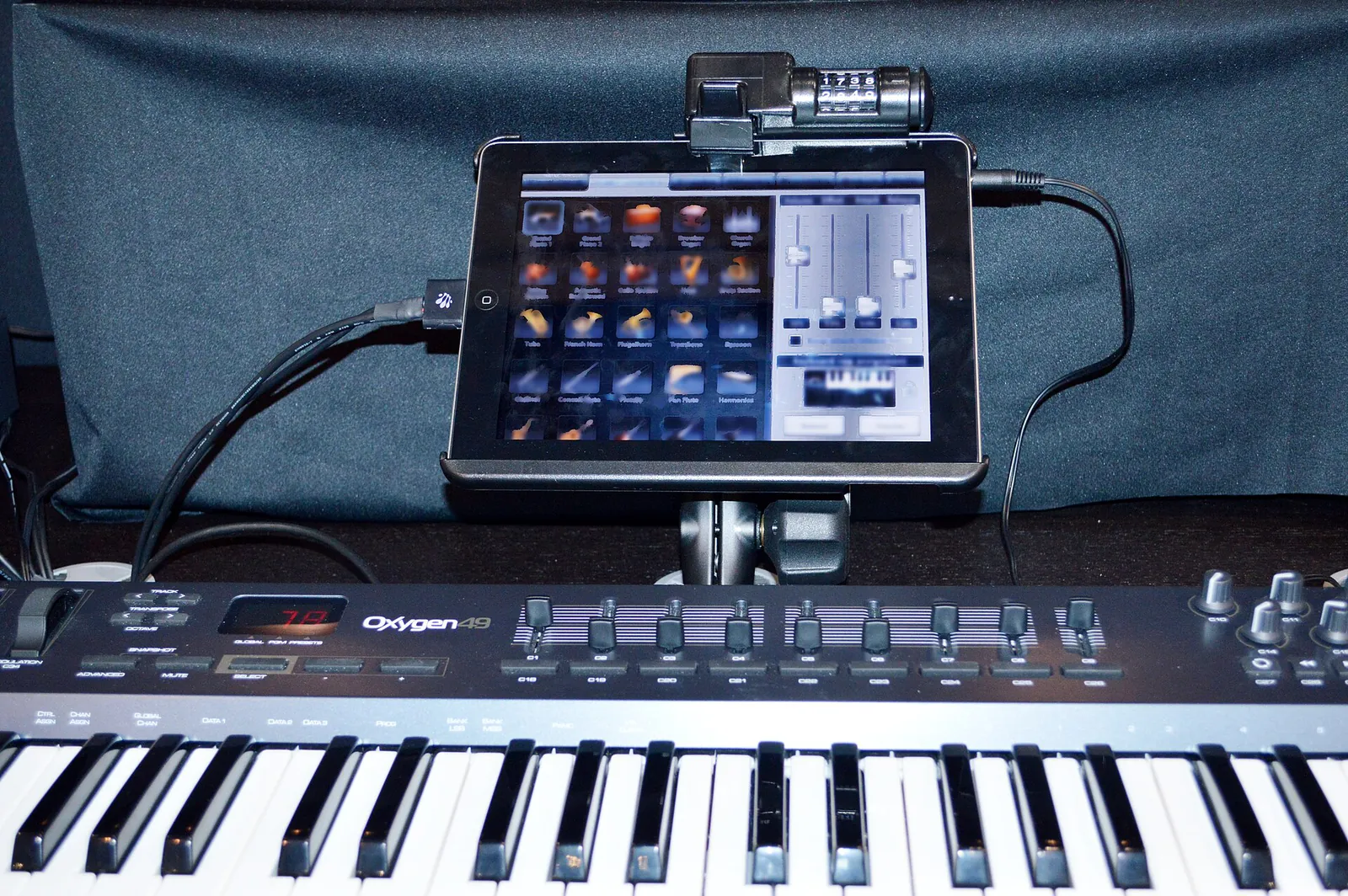
ImmerGround's Trigger mode overlaps with this idea from the other side: pads fire looks and effects, but the music keeps moving the picture between hits.
What you need to VJ from an iPad
Whichever app you pick, the rest of the kit is the same, and it is smaller than a laptop rig.
- A way to the screen. A USB-C to HDMI adapter, or AirPlay to an Apple TV. For a show, the cable is the safer choice: there is nothing to pair and no Wi-Fi to lose halfway through a set.
- Power. A USB-C hub with power passthrough keeps the iPad charging while it drives the screen and a controller. A dead iPad at the peak of the night is the one failure nobody forgets.
- A controller, if you want hands on it. A class-compliant MIDI controller is the safe choice, since an iPad has no drivers to install. Test it before the gig: our free MIDI tester shows every note, CC and pad a controller sends. It runs in Chrome, Edge or Firefox on a computer, since no browser on iPad supports Web MIDI. Our guide to the best MIDI controllers for visuals compares twelve of them by what your hands should do.
- Something to play. Your own footage looks the most like you. For the gaps, our free VJ loops are 4K and 1080p, 16 seconds at 120 BPM, with no visible join, and CC0, so any app on this list can use them. Our guide to free VJ loop sources covers the others and what their licenses allow at a paid gig.

If the music comes from Spotify or Apple Music on the same device, there is a catch worth knowing before you plan a set around it: neither service hands its audio to other apps, so the microphone is the route. We cover it step by step in a Spotify visualizer on iPhone and iPad and the Apple Music visualizer on iPad, iPhone and Mac.
Which one should you get
- Two decks, a crossfader and every output a venue asks for: GoVJ, or 100VJ if you also want DMX and projection mapping and your iPad runs iPadOS 26.
- A deep visual synth and one price: VS 2. To start free instead, Chromatose (MIDI clock) or AV Synth (Link, an AUv3 version).
- Visuals played from MIDI, with no audio involved: VJ-XY.
- Visuals behind your own DJ set, with nobody else to run them: an app that reacts to audio on its own. Our guide to visuals for a DJ set covers the rig, the content and the plan for the night.
- Your own clip or photo moving with the track, on iPhone, iPad and Mac: ImmerGround.
- Resolume-style layers and projection mapping: a laptop. Read our beginner guide on VJ software for beginners, our breakdown of Resolume vs TouchDesigner, our guide to Resolume alternatives, and TouchDesigner alternatives.
If you are not sure which group you are in, start from the sound. If the picture should follow the music by itself, you want a synth or ImmerGround. If you want to cut between clips on the downbeat by hand, you want a mixer.
Where to get it
- ImmerGround. iPhone, iPad and Mac, one app. Free to download; ImmerGround Pro is $6.99 a week or $39.99 a year.
- Free live audio visualizer. The same effects in your browser, with your mic or a song, on a clip or a photo, and a video out with a small immer ground mark in the corner. The fastest way to see whether footage that reacts is the look you want.
- Free VJ loops. Thermal, ASCII and glitch, dither and halftone packs, CC0, no email.
- The others: VS 2, 100VJ, GoVJ, AV Synth, VJ Live, Chromatose, TouchViZ, VJ-XY and V4M, all on the App Store.
What to do next
- Decide the job first: mixing clips, a synth, footage that reacts, or an instrument. The group narrows ten apps to two or three.
- Check the device: iPad only or iPhone too, and whether the current version supports your iPad's iOS.
- Try the free ones first. GoVJ, AV Synth, VJ Live, Chromatose, V4M and ImmerGround all download for free.
- Test your controller and your screen out at home with the MIDI tester and the adapter you will use at the venue.
- Load your own footage and a track with a clear kick, and build one look you would be happy to project. Then build the second.
.jpg)
