 ImmerGround for iPhone, iPad and Mac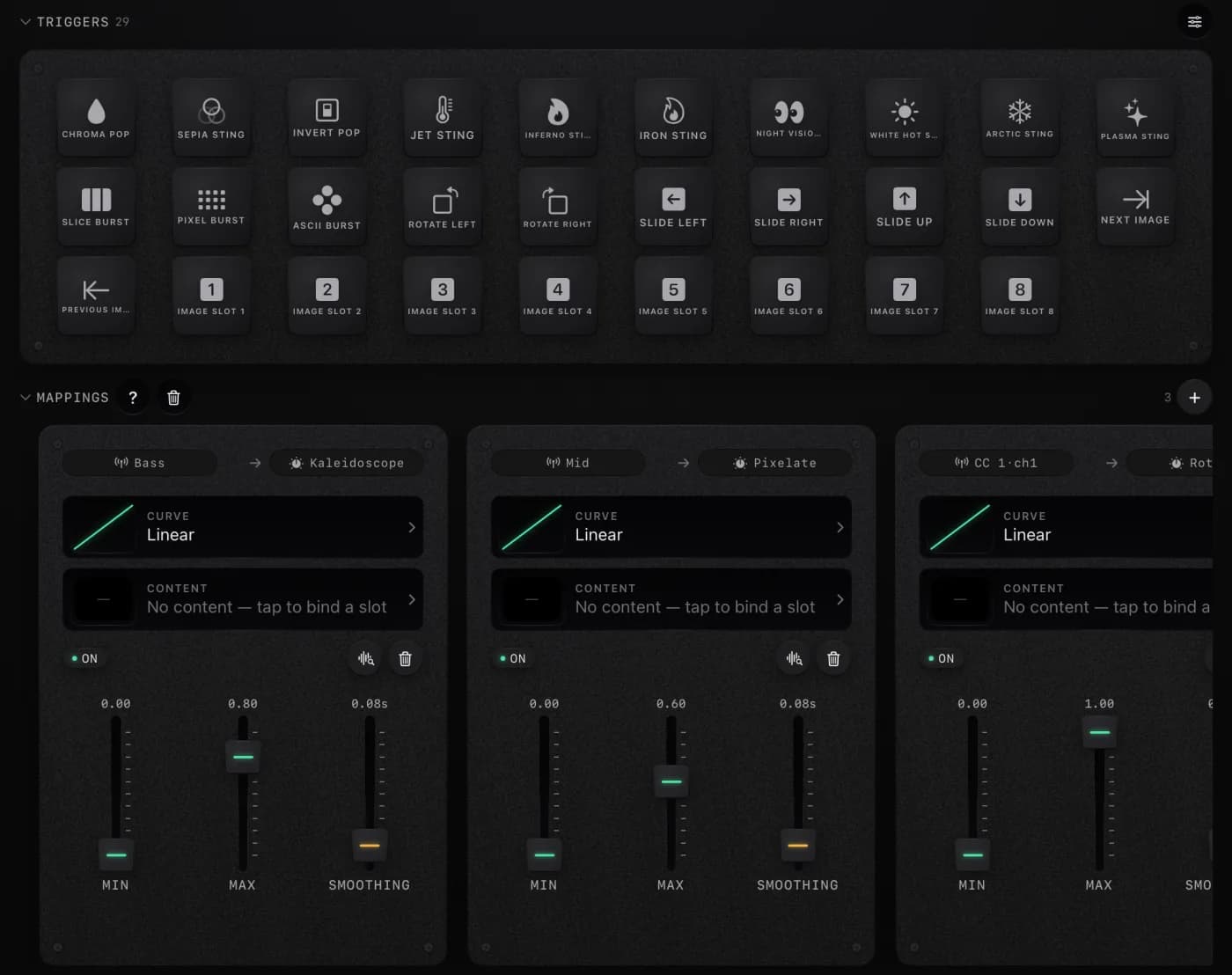
How to test a MIDI controller
- Plug the controller in over USB and open this page in Chrome, Edge, Opera or Firefox.
- Press Connect MIDI and allow MIDI when the browser asks. The controller appears under Devices with a light that blinks whenever it sends.
- Play every key, hit every pad, turn every knob and move the wheels. Keys and pads light in the colour of their velocity, knobs turn to their CC value, and each message lands in the monitor with its channel and raw bytes. Turn on Sound to hear every note as you play it.
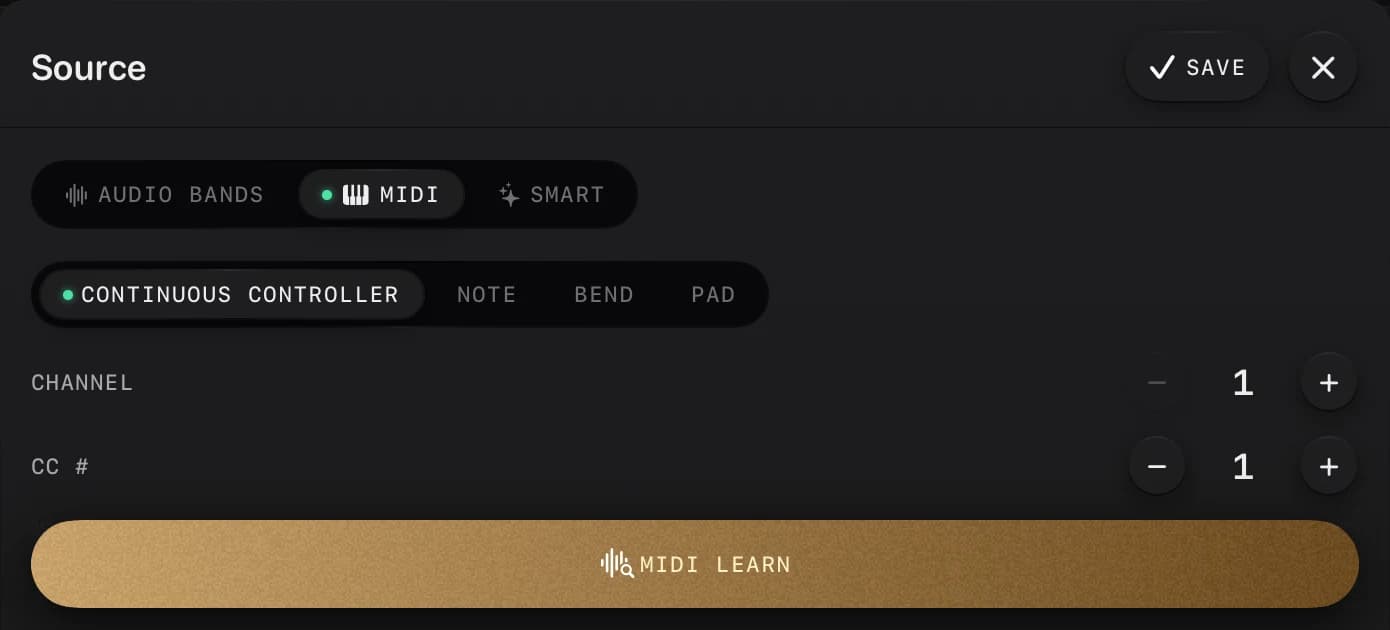
- To find out what one control sends, press MIDI Learn and move only that control. The tester names it the way ImmerGround does, such as CC 74·ch1 or Pad 36·ch1.
- No controller with you? Press Demo and a made-up one plays drums, chords, a filter sweep and a clock at 120 BPM.
What each message means
| Message | Sent by | Values |
|---|---|---|
| Note on, note off | Keys and pads | Note 0 to 127 (60 is middle C), velocity 1 to 127. Many keyboards end a note with a note on at velocity 0; it shows as Note off. |
| Control change (CC) | Knobs, faders, buttons, pedals | Controller 0 to 127, value 0 to 127. CC 1 is the mod wheel, CC 7 volume, CC 64 the sustain pedal. |
| Pitch bend | The pitch wheel or strip | -8192 to 8191, 0 at rest. Fourteen bits, so it moves far more smoothly than a CC. |
| Aftertouch | Pressing harder on a held key or pad | 0 to 127, for the whole channel or for each note (poly aftertouch). |
| Program change | Preset and patch buttons | 0 to 127, which most gear shows as 1 to 128. |
| Clock, start, stop | A DAW, drum machine or sequencer | 24 clock ticks per beat. The Clock panel turns them into a BPM. |
| SysEx | Device settings and updates | Not read here: it needs a permission that could also reprogram the device. |
Controller not showing up?
- Browser. Safari, and every browser on iPhone and iPad, has no Web MIDI. Use Chrome, Edge, Opera or Firefox on a computer. Firefox asks you to allow MIDI with an extra prompt first.
- Permission. If you blocked MIDI, allow it again from the icon at the left of the address bar, then press Try again.
- Cable and port. Some USB cables only carry power. If the controller lights up but never appears, try another cable, and plug it straight into the computer instead of a hub.
- Another program. On Windows a MIDI port can usually be open in only one program at a time. Close your DAW or the maker's editor, then reload this page.
- Bluetooth. Pair a Bluetooth MIDI controller with the computer before the browser can see it. On a Mac, open Audio MIDI Setup, choose Window, Show MIDI Studio, and use the Bluetooth button.
- Drivers. Most controllers are class compliant and need no driver. A few older ones need the maker's driver installed first.
Channels, velocity and middle C
MIDI has 16 channels. Most controllers send on channel 1, and drum pads often use channel 10; pick one under Show to watch only that channel. Velocity is how hard you played: pads and keys glow green below 64, amber from 64 and red from 112, and the Pads panel keeps the highest velocity it has seen, so you can check that every pad reaches 127.
Note 60 is middle C, but gear disagrees on its name. Scientific pitch calls it C4, Ableton Live and Yamaha call it C3, and FL Studio calls it C5. Switch Middle C at the top of the tester to match the names your software uses.
MIDI clock and tempo
A DAW or drum machine can send MIDI clock: 24 ticks per beat, plus Start, Stop and Continue. The Clock panel turns the ticks into a BPM, lights the beat and counts the bars. Turn on clock output for this port in your DAW's MIDI settings. The ticks are hidden in the monitor so they do not bury everything else; turn on Clock ticks to log them. Need the tempo of a song instead? The BPM finder reads it from the audio.
Testing MIDI out
Pick a device under Send to and the on-screen pads, keys, knobs and faders play it: notes on the channel shown above the keyboard, and each knob on its own CC and channel. It is a quick way to check a synth's MIDI input or to light up a controller's pads. If a note sticks, press All notes off.
Use your controller for visuals
ImmerGround turns MIDI into visuals on iPhone, iPad and Mac. A class-compliant controller over USB-C or Bluetooth drives effects on your own clip or photo, and its notes, knobs and pads sit on the same signal bus as the music, so a knob can set the glitch amount while the kick fires the strobe. In the app, open a mapping's source, press MIDI Learn and move a control; the labels under MIDI Learn in this tester are the ones the app shows. No controller yet? The trigger pads in the app's workspace fire on a tap too.
To see the effects first, try the free live visualizer in your browser, or grab the free VJ loops for your next set.
Questions
Is this MIDI tester free and private?
Yes. It is free with no account, it runs in your browser, and no MIDI data leaves your computer. It only asks to listen, without SysEx, so it cannot change your device's settings.
Why does it not work in Safari or on my iPhone?
Safari does not support Web MIDI, and every browser on iPhone and iPad is built on Safari's engine, so none of them can read a controller. Use Chrome, Edge, Opera or Firefox on a computer. Chrome on Android phones and tablets works too.
My controller is plugged in but not listed. What now?
Try another USB cable, since some only charge, and plug straight into the computer rather than a hub. Close any other program that has the controller open, then press Connect MIDI again. A Bluetooth controller has to be paired with the computer first.
Why do my pads show up as notes?
Pads send notes just like keys, usually from note 36 upward on channel 10 or channel 1, with a velocity for how hard you hit. The Pads panel shows 16 notes at a time; use its arrows to see another bank.
Can I see SysEx messages?
No. Reading SysEx needs a stronger browser permission, one that also lets a page reprogram your device, so the tester does not ask for it. Notes, CCs, pitch bend, aftertouch, program changes and clock all work without it.
Can it send MIDI too?
Yes. Choose a device under Send to, then play the on-screen pads, keys, knobs and faders. If a note gets stuck, press All notes off.