There is no TouchDesigner for iPad. Derivative's system requirements list Windows 10, Windows 11 and macOS 13 or later, and nothing else. That still leaves three good ways to bring an iPad into a TouchDesigner practice: as a touch control surface for a patch running on your computer, as a camera and sensor that feeds the patch, or as the whole visual rig with an app built for the tablet. This guide takes each route in turn, with the apps that do the job and their App Store prices as of 11 November 2026, a step by step OSC setup, and an honest list of the things only a computer running TouchDesigner can do.
TouchDesigner does not run on iPad, and a remote screen is not the fix
Start with the plain fact, because a lot of forum threads circle it for pages. TouchDesigner is a desktop application. Derivative's system requirements name Microsoft Windows 10 and Windows 11, and Apple macOS 13 Ventura or later, and they say nothing about iPadOS, iOS or Linux. Search the App Store for TouchDesigner and you find apps that talk to it, made by other developers, but not TouchDesigner itself.
That is not an oversight you can work around with a setting. A TouchDesigner project is a live network of operators, Python scripts, files on disk and a graphics card driving one or several outputs at once. The editor is built for a mouse, a keyboard and a large screen, with small parameter fields and right-click menus everywhere. Even on a laptop, people who build serious networks plug in a second monitor.
The common suggestion is to mirror the computer onto the iPad and touch it there. That works as a monitor, and section four explains when it is worth doing. As a way to perform, it breaks quickly: the parameter fields are too small for a finger, every touch has to cross a network before anything happens, and the picture you see on the tablet is a compressed copy of the real output. Nobody who performs with TouchDesigner every week runs their show this way.
So the useful question is not "how do I get TouchDesigner on my iPad". It is "what job should the iPad do", and there are three answers.
Decide what the iPad is for before you buy anything
Each route keeps a different amount of TouchDesigner in the picture. The first two keep all of it on the computer and give the iPad a supporting part. The third replaces the computer for the show, and with it, most of what TouchDesigner does.
| Route | What the iPad does | TouchDesigner still runs | Typical cost | Pick it if |
|---|---|---|---|---|
| Control surface | Faders, buttons and XY pads that send OSC or MIDI into your patch | Yes, on the computer | Free (Lemur) to $19.99 (TouchOSC) | You already have a patch and want to play it by touch |
| Camera and sensors | Streams video, depth, motion or touch data into the patch | Yes, on the computer | Free to start (TouchRemote PRO, TDLiDAR) | You are building an interactive piece and want a sensor you already own |
| Remote screen | Shows the computer's screen so you can check the patch from the room | Yes, on the computer | Free (Sidecar on a Mac, Windows App on a PC) | You need to see the network while you stand by the projector |
| Whole rig | Makes the visuals itself and sends them to a screen | No | Free to download up to $49.99 | You want a show that fits in a bag and starts in a minute |
Most people who search for TouchDesigner on iPad want one of two things: a nicer way to perform a patch they already built, or a way to stop carrying a laptop. The first is the control surface route. The second is the whole rig route. The other two are tools for specific jobs, and you will know if you need them.
Use the iPad as a control surface: the route most TouchDesigner artists take
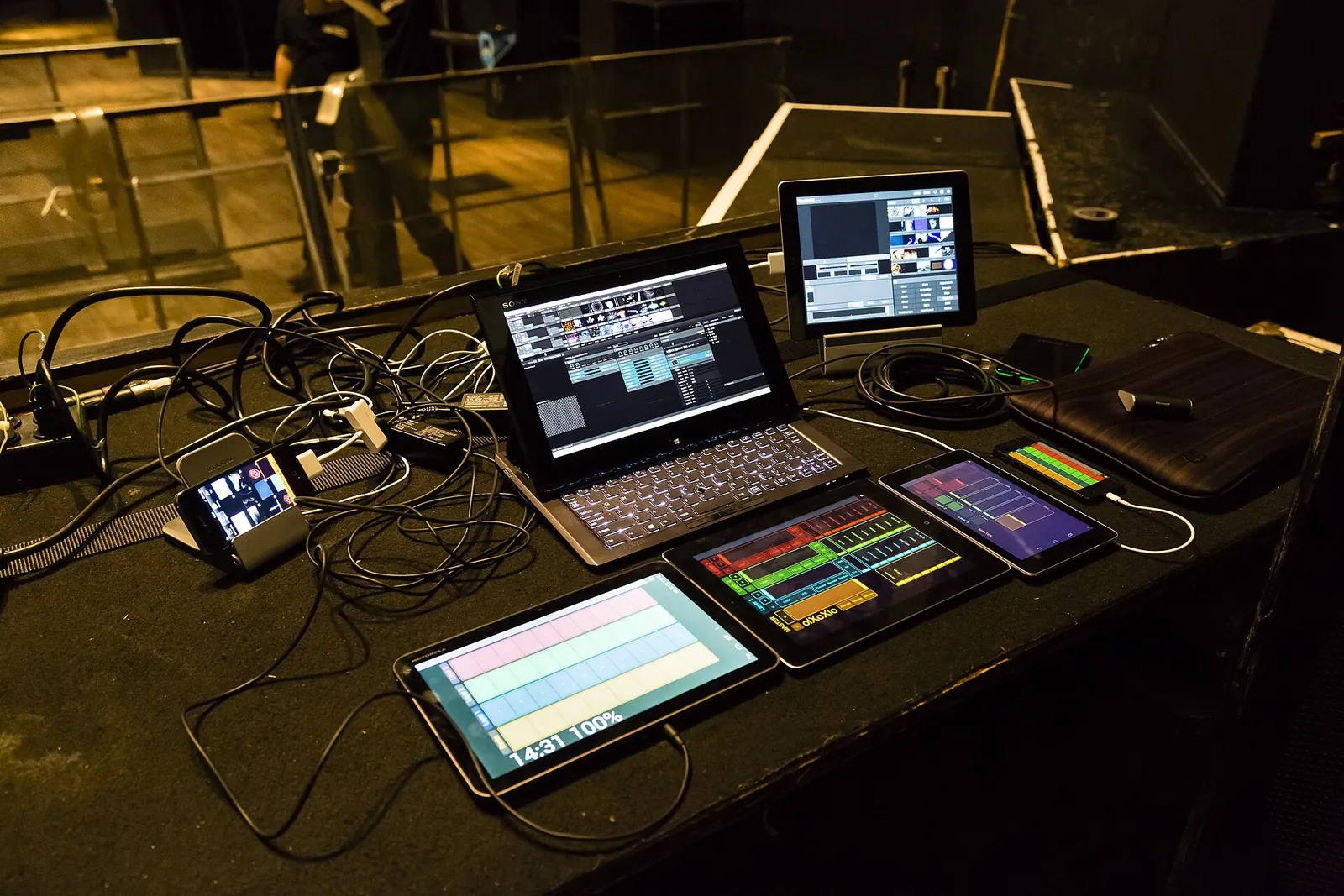
This is the setup you see in photos of working VJ booths: the computer stays under the table, running the patch at full strength, and the artist plays it from a touch screen. The iPad sends messages, TouchDesigner receives them, and nothing about your network changes except where its inputs come from.
The apps that do it
- TouchOSC, $19.99. The modular control surface from Hexler. It sends and receives any number of MIDI and OSC messages, over UDP and TCP, and over MIDI on a USB cable. Its editor also runs on Mac and Windows, so you can design a layout with a mouse and test it live on the iPad at the same time. The licence is a one-time purchase.
- Lemur, free. The long-running MIDI and OSC controller builder, now from MIDI Kinetics. A free desktop editor for macOS and Windows designs and scripts the layout, and a desktop daemon carries MIDI and OSC to the rest of your setup over USB or Wi-Fi.
- TouchRemote PRO, free. Made specifically for TouchDesigner. Instead of a separate layout, it connects to the panels you built inside TouchDesigner and shows them on the tablet, streamed over WebRTC or NDI, so the controls you designed in your network become the controls under your finger. It can also kiosk-lock the interface for an installation.
Which to choose comes down to where you want to design the interface. If you like building layouts in a dedicated editor, TouchOSC is the most complete and Lemur costs nothing. If you already build control panels inside TouchDesigner and do not want to design them twice, TouchRemote PRO is the shortest path.
Wire it up over OSC in ten minutes
OSC over the network is the usual way in, because it carries named messages with real numbers instead of MIDI's 0 to 127. The steps are the same in spirit for TouchOSC and Lemur; the names below are TouchDesigner's.
- Put both devices on one network. At home that is your Wi-Fi. At a venue, bring a small router of your own and keep it off the internet, because a crowded public network is the most common reason messages arrive late or not at all.
- Find the computer's address. On a Mac it is in System Settings, under Wi-Fi, Details. On Windows, run
ipconfigand read the IPv4 address. - Add an OSC In CHOP in TouchDesigner and set its network port, for example 10000. It will list every channel it receives.
- Point the iPad app at the computer. In the app's connection settings, set the host to the computer's address and the send port to the same number.
- Move one control. A channel named after the control's address appears in the OSC In CHOP, and its value follows your finger. If nothing appears, check the port, then the firewall on the computer.
- Use the channel. Reference it from any parameter, or rename and scale it first with a Select and a Math CHOP so a fader that sends 0 to 1 drives a parameter that wants 0 to 360.
Send values back the other way with an OSC Out CHOP if you want the iPad to show the patch's state: a button that lights when a scene is live, or a fader that moves when an automation runs. It is a small step that makes the surface feel like an instrument rather than a remote.
Or use MIDI on a cable
If you would rather not trust a network at all, MIDI on a USB cable is the sturdier path. TouchOSC sends MIDI over USB on iOS. On a Mac, an iPad on a cable can also appear as a MIDI device once you enable it in Audio MIDI Setup. In TouchDesigner, the MIDI Device Mapper picks up the input, and a MIDI In CHOP turns notes and controllers into channels. You lose OSC's names and precision, and you gain a connection that does not care how many phones are in the room.
Before you open TouchDesigner, it saves time to check that the computer actually receives anything. Our free MIDI tester runs in Chrome, Edge or Firefox and shows every note and controller the iPad sends, with sound if you want it, so you know whether a silent patch is a cabling problem or a patch problem.
Use the iPad as a camera and sensor that feeds the patch
An iPad or iPhone carries several sensors that interactive work usually pays extra for: good cameras, motion sensors, a microphone and, on Pro models, a LiDAR depth scanner. Two apps turn them into inputs for TouchDesigner over the network.
- TDLiDAR, free with a Pro upgrade. Turns the device into a live depth camera and a streaming hub for about 40 sensors. Depth arrives in TouchDesigner as an NDI source at up to 1080p and 60 frames a second; sensor data such as ARKit body, face and hand tracking arrives as OSC. The free tier includes NDI depth and show control over OSC and MIDI; point clouds and the neural depth modes are in Pro, a one-time purchase or a three-day pass. It needs iOS 18.6 or later and a TrueDepth or LiDAR camera for the depth modes.
- TouchRemote PRO, free. Beyond panel control, it streams the device camera into TouchDesigner and sends gyroscope, accelerometer and other sensor data in real time, which is enough for a tilt-to-steer piece or a camera you can hand to a visitor.
This route is the reason a TouchDesigner artist might buy an iPad Pro rather than a cheaper tablet: the LiDAR scanner gives you a depth camera in a device you also use to control the show. The limits are the network and the battery. NDI video across Wi-Fi needs a strong, quiet network, and a device streaming depth for hours needs power.
Mirroring TouchDesigner onto the iPad is for checking, not for playing
Sometimes you need to see the network while you stand somewhere else: next to the projector during a focus, at the back of the room during a soundcheck, or by an installation while the computer sits in a locked cupboard. For that, a remote screen is the right tool.
- On a Mac, use Sidecar. It turns the iPad into a second display that extends or mirrors the Mac, wirelessly within about 10 metres or over a USB cable, which also keeps the iPad charged. Both devices need the same Apple Account with two-factor authentication. Supported iPads include every iPad Pro, iPad 6th generation and later, iPad mini 5th generation and later, and iPad Air 3rd generation and later.
- On a Windows PC, use Windows App Mobile, Microsoft's free remote desktop app, formerly called Remote Desktop Mobile. The PC has to accept Remote Desktop connections, which Windows Home editions do not offer, so check your edition first.
Use either one to read values, move a node, or restart a component without walking back to the desk. Do not use it as the performance surface. Sidecar extends the Mac's interface, built for a pointer, onto a screen built for a finger, and a remote desktop adds a network trip to every touch. A control surface sends one small message per move and feels instant by comparison.
If you want the visuals on the iPad itself, choose by how you like to build
The fourth route drops the computer for the show. You give up TouchDesigner's open-endedness and get a rig that fits in a bag, plugs into a projector with one adapter, and starts in about a minute. The apps differ most in how you build a look, so that is how to choose.
| App | How you build | Price (US App Store, 11 Nov 2026) | Closest thing in TouchDesigner |
|---|---|---|---|
| VisualSound | Patch cables between modules for sound, control, visuals, geometry and code | $19.99, a launch price | A network of operators |
| KodeLife | Write shaders that update as you type | $9.99 | A GLSL TOP |
| VS 2 (Imaginando) | Layers of shaders, text, images, video and live input | $49.99, preset packs extra | A composite of TOPs with audio CHOPs |
| Chromatose | A generative visual synth played by hand | Free, Pro upgrade | A feedback network with knobs on it |
| AV Synth | Up to five generative layers with effect chains | Free, weekly or yearly plan | Layered generators and effects |
| ImmerGround | A list of mappings from sound or MIDI to effects on your own clip or photo, or to one of 40 shaders | Free to download; Pro $6.99 a week or $39.99 a year | Audio CHOPs driving effects on a Movie File In TOP |
VisualSound: the nearest thing to nodes on an iPad
VisualSound is a modular instrument where sound and picture share one patching canvas. Its listing counts more than 140 modules across sound, control, visuals, geometry and code, and the point is that anything can drive anything: an envelope can strike a fluid simulation, a sequencer can bend a shader, a camera feed can become an oscillator. If what you love about TouchDesigner is wiring things together to see what happens, this is the app to try first. It is new, released in 2026 at a launch price, so expect a smaller library of shared patches than TouchDesigner's years of community work.
KodeLife: shaders, live, with sound and MIDI
KodeLife, from the makers of TouchOSC, is a real-time GPU shader editor and live-coding tool. Code is checked and updated in the background as you type, it supports GLSL and Metal shaders, and the device's audio input and MIDI connections can drive the visuals. Projects move between the iPad and the desktop versions. If your favourite part of TouchDesigner is the GLSL TOP, KodeLife is that part on its own, and a hardware keyboard on the iPad makes it comfortable.
VS 2, Chromatose and AV Synth: visual synths
These three are instruments rather than editors. VS 2 from Imaginando is the deepest: layers of shaders, text, images, video, visualizers and live input, all reacting to audio and MIDI, and it is the iPad app most often compared with desktop tools. Chromatose is a modular-feeling visual synth you learn in an hour, with output to a TV or projector over HDMI or AirPlay. AV Synth blends up to five generated layers, each with its own effect chain, and saves looks as presets you recall live. Our roundup of the best VJ apps for iPad checks these and seven more against their App Store listings.
ImmerGround: your own footage, moved by the music
ImmerGround is our app, so weigh this paragraph accordingly. It works two ways. It puts effects on your own clip or photo and lets the music move them, and it has 40 shaders, generative scenes such as Wobble Grid, Op Art, Kanji and Pixel Sort that move with the music on their own (4 free, 36 with Pro). It listens through the microphone or to an audio file, splits the sound into bass, mid, high, loudness and beats, and a readable list of mappings connects any of those, or any knob and pad on a MIDI controller over USB-C or Bluetooth, to any effect. There are thermal looks, glitch and ASCII textures, kaleidoscope and zoom, strobes and freezes. Pad scenes recall a whole state on one hit, a second screen connects over HDMI or AirPlay, and every session can be rendered again later at up to 4K. It runs on iPhone, iPad and Mac.
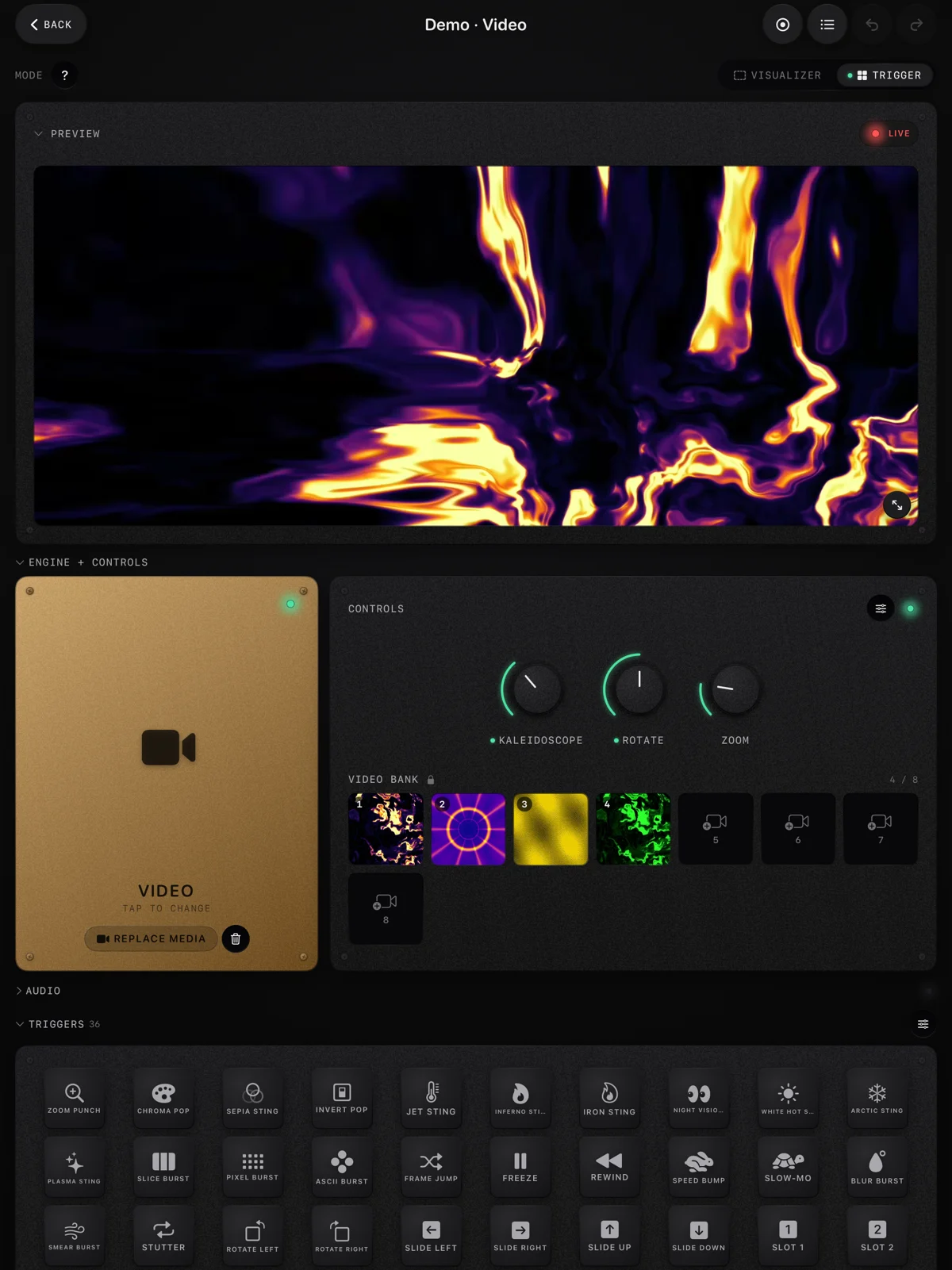
The honest comparison with TouchDesigner is narrow: if your patches are mostly "analyse the audio, push the result into effects on a video" or a generative scene you play rather than build, the mapping list and the shaders do that in minutes. If your patches build geometry, run Python or talk to sensors, ImmerGround does not replace them. You can try the same effects and mappings without installing anything in our free browser visualizer.
Where the iPad stops, and TouchDesigner is still the answer
It is worth being blunt about this, because the cost of finding out at a gig is high. An iPad is a superb controller and a capable visual instrument, and it is not a small TouchDesigner.
- Outputs. An iPad drives its own screen and one external display, over a USB-C or Lightning adapter or AirPlay. TouchDesigner's paid licences drive several projectors, edge blends and LED walls with their own pixel maps from one machine.
- Scripting and data. TouchDesigner runs Python, reads files and databases, talks to web services and to DMX lighting. iPad visual apps keep most of that out on purpose.
- Sensors at scale. The iPad can be a sensor, as above, but a TouchDesigner machine can take several cameras, depth sensors and tracking systems at once.
- Heavy 3D. Recent iPads have fast GPUs, but a desktop graphics card with its own cooling sustains heavy scenes for longer, and a long set in a hot booth is exactly when a tablet slows itself down to stay cool.
- Your own tools. In TouchDesigner, a missing feature is an evening of work. In an app, it is a feature request.
The common advice on forums is "get an iPad Pro, it is as fast as a laptop". On raw benchmarks that can be true, and it misses the point. What limits an iPad rig is not the chip; it is one external output, no scripting, and an operating system that pauses apps you are not looking at. Pick the iPad for what it does well, which is touch, portability and a fast start, and keep the computer for the jobs above.
A hybrid rig: TouchDesigner on the laptop, the iPad in your hands
For most TouchDesigner artists the best answer is both: the laptop runs the patch and the outputs, and the iPad becomes the instrument. A layout that works for a club set, built in TouchOSC or as TouchDesigner panels for TouchRemote PRO:
| Control on the iPad | Sends | Drives in the patch |
|---|---|---|
| Eight buttons, top row | OSC /scene/1 to /scene/8 | A Switch TOP choosing between eight looks |
| Four faders | OSC /fx/1 to /fx/4, 0 to 1 | Feedback amount, displacement, colour shift, blur |
| One XY pad | OSC /xy, two values | Camera position or a noise offset |
| Two flash buttons | OSC /flash and /blackout | A white flash on the drop, and a safe blackout |
| Tap tempo button | OSC /tap | A Beat CHOP that sets the patch's tempo |
Two habits make this rig reliable. Give every important control a fixed place on the first page of the layout, so muscle memory works in the dark. And send the patch's state back to the iPad, so a button lights when its scene is live; without that, you cannot tell from the booth whether a message arrived.
If you also want a backup that does not depend on the laptop, a second device running a standalone visual app on the same projector input is cheap insurance: when a patch crashes mid-set, you switch the input and keep the room lit while you restart. Our guide to a live visuals setup with an iPad and a projector covers the adapter, mirroring versus a second screen, and placement.
Where to get it
- Free MIDI tester. Checks in the browser that your iPad's MIDI reaches the computer before you open TouchDesigner. Free, nothing to install.
- Free live audio visualizer. ImmerGround's effects and mappings in your browser, with your mic or a song, on a clip or a photo. Free, nothing uploaded.
- ImmerGround. iPhone, iPad and Mac, one app. Free to download; ImmerGround Pro is $6.99 a week or $39.99 a year.
- TouchOSC ($19.99 on iPad) and Lemur (free). Control surfaces that send OSC and MIDI into your patch.
- TouchRemote PRO and TDLiDAR. Free to start; built to connect an iPad or iPhone to TouchDesigner.
- TouchDesigner. Windows and macOS. The Non-Commercial licence is free, with images capped at 1280 by 1280; Commercial is $600.
What to do next
- Pick the iPad's job: control surface, sensor, remote screen or whole rig. Only the last one replaces the computer.
- If it is a control surface, start with Lemur because it is free, build four faders and eight buttons, and wire them to an OSC In CHOP with the steps above.
- Test the connection before the patch. For MIDI, the MIDI tester shows in seconds whether anything arrives.
- If you want to leave the laptop at home, read our TouchDesigner alternatives and the iPad VJ app roundup, then try the browser visualizer to see whether a mapping list is enough for your music.
- Keep TouchDesigner for the big jobs. Multiple projectors, sensors and anything you need to build from scratch still belong on the computer.