Every ImmerGround project opens into the same workspace: a stack of panels, each with a header you tap to open or fold it. Which panels you see depends on the engine and the mode. This is a tour of all of them, in the order they appear by default, with what each one is for and when you will reach for it.
The top bar and the mode switch
Across the top: Back to the library, the project's name, and four round buttons. The first starts and stops a recording (see Record a take), the second opens the list of recorded sessions, and the last two are undo and redo. Every change in a project can be undone.
Under the bar sits the Mode switch, with a ? button that explains both modes:
- Visualizer: one picture that breathes with the music for as long as you like. Set the mood once and let the song drive it.
- Trigger: a bank of looks played like an instrument. It adds the Triggers pads and Pad Scenes to the workspace.
Preview
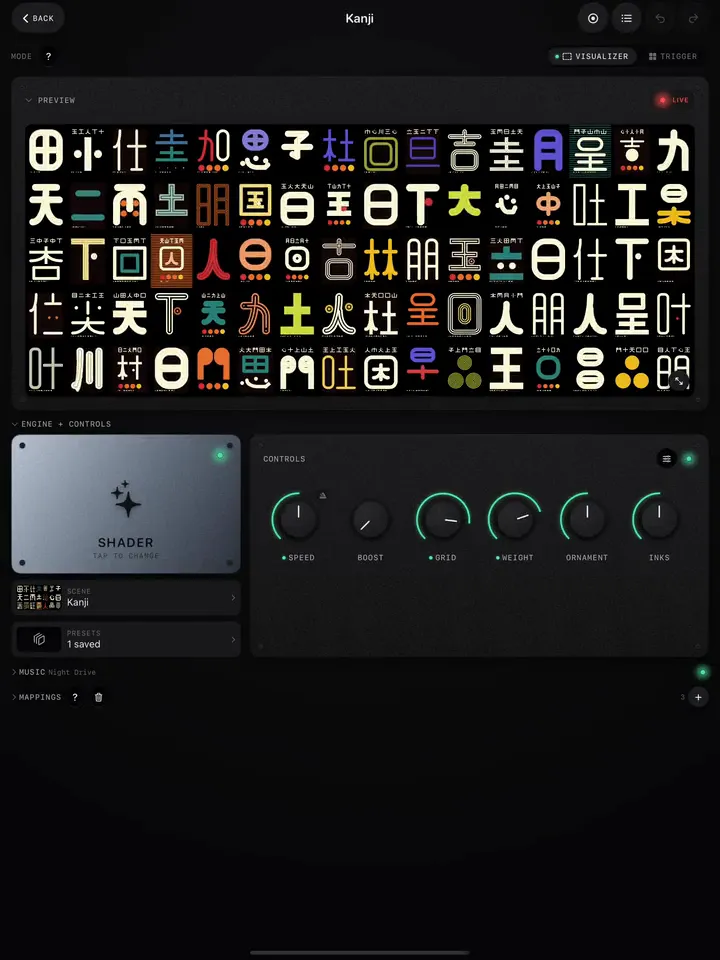
The picture that goes out, live. The badge in its corner reads Live while the engine draws and Standby when there is nothing to draw yet (a Video project without a clip, for example). The button in the bottom corner goes full screen. On a second screen, the preview on your device pauses so all the GPU goes to the output.
Engine and Controls
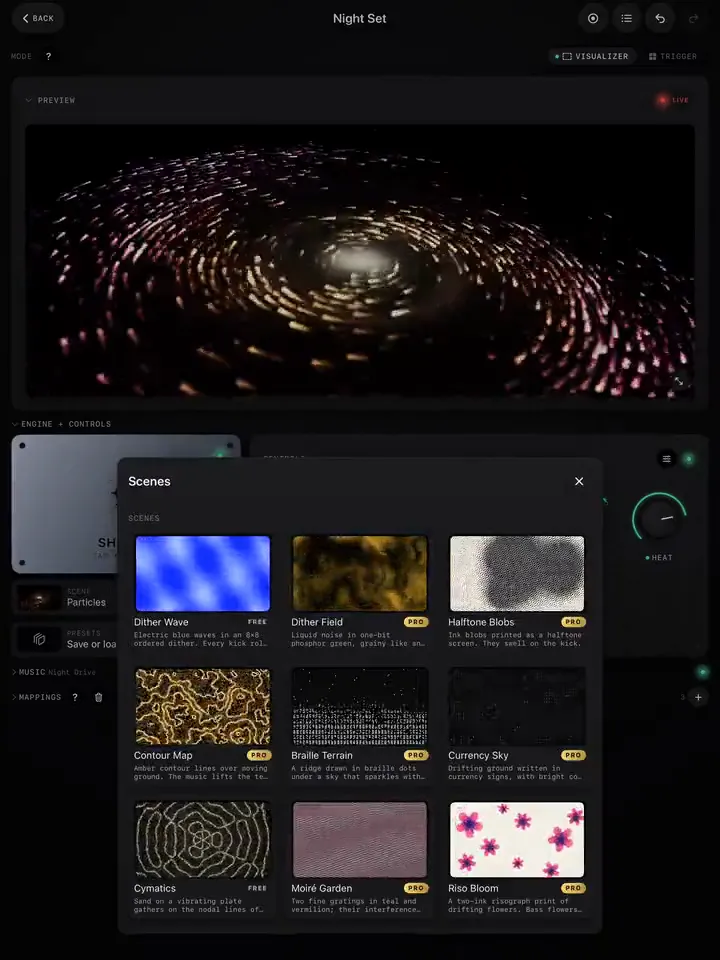
On the left, the engine tile: Shader, Video or Image. Tap it to change engine. For a Shader project, the Scene row under it opens the scene picker and the Presets row saves or loads a whole setup. For Video and Image projects, the tile has Replace media.
On the right, the knobs. Drag a knob up or down to turn it. Shaders show Speed, Boost and four knobs of the scene's own; videos start with Speed, Glitch and Strobe. A green dot under the name means a mapping drives that knob right now. The small metronome next to Speed locks the speed to the beat (Lock it to the beat). The slider button in the panel's corner edits the knobs: remove one, or tap Add knob to put any effect on the panel.
Music
The sound source (Off, Input or Library), the player and its setlist, the beat clock with its BPM, and four meters: Bass, Mid, High and Gate, plus a live spectrum. When the visuals do not react, look here first. Full guide: Get music into the visuals.
Triggers
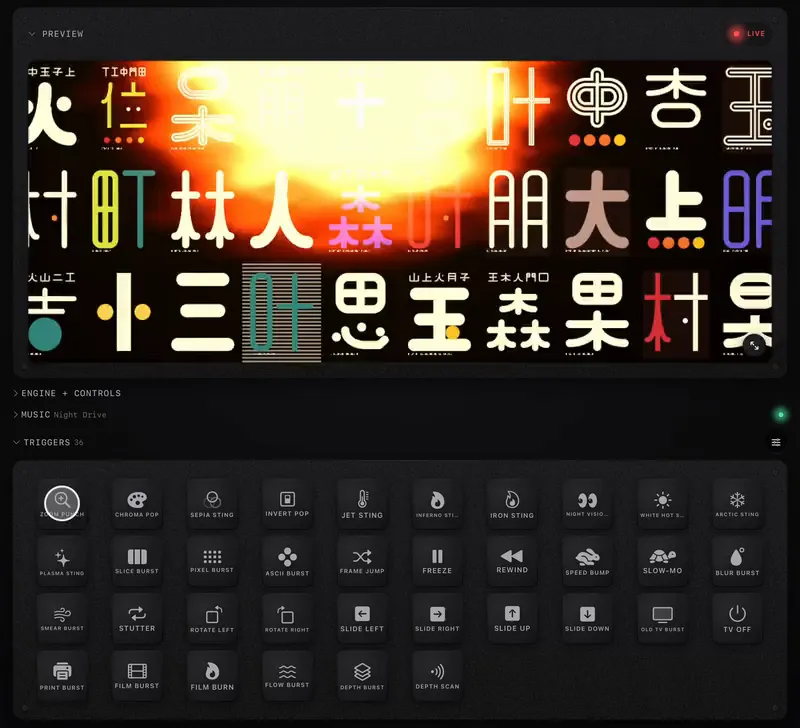
A grid of pads, each one a short effect burst: Invert Pop, Slice Burst, Rewind, Smear Burst, Film Burn and more. Tap one and it plays over whatever is on screen. The slider button on the header picks which pads show and in what order. Full guide: Fire looks from the Trigger pads.
Cues (Video projects)
Moments of your clip on pads. Split a clip into 8, 16 or 32 pads, or add a cue at the moment that is playing, then jump between moments with a tap, a key or a MIDI pad. Full guide: Video Cues.
Mappings
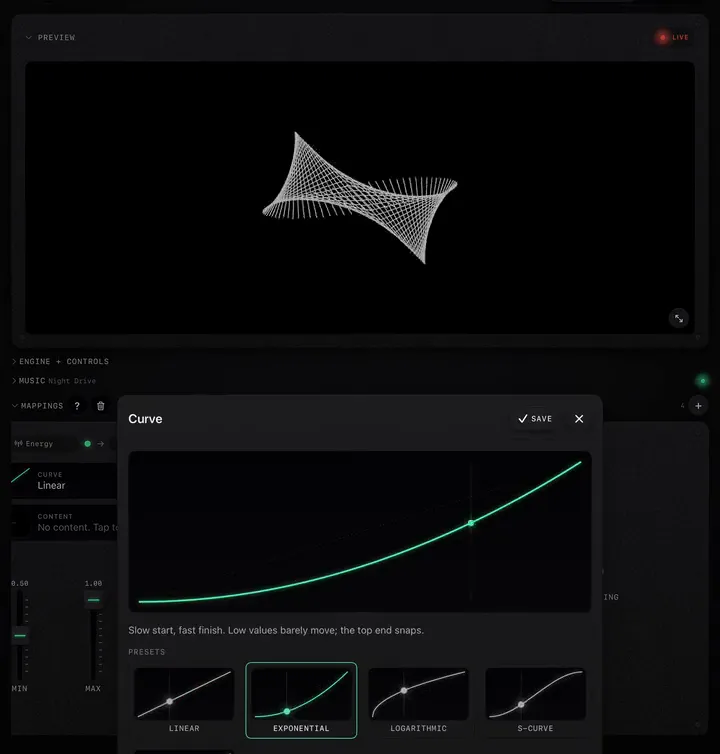
The wiring. Each card connects one source (the bass, the beat, a MIDI knob) to one destination (a knob or a trigger), with a curve, an output range and smoothing. The + on the header adds a new mapping with a sensible suggestion already filled in. Full guide: Map the music to any knob.
Pad Scenes (Trigger mode)
One MIDI pad that does several things at once: swaps the clip and moves a set of effects to new values, with a morph time, an optional hold, and auto-advance on the bar. Full guide: Pad Scenes.
Arrange it your way
In Settings › Workspace Layout you can move panels up and down with the arrows, choose which modes show the Triggers pane, and go back to the default order. On a Mac there is also Side by side, which puts Preview, Engine and Controls on one row, a third of the width each. The layout applies to every project and stays after a restart.