A shader is a scene ImmerGround draws itself, live on the GPU: a city at night, sand on a vibrating plate, a wall of kanji posters, a ring of op art lines. Shaders need no footage, render sharp at any size, and arrive already listening to the music. This guide covers picking one, shaping it with its knobs, what happens to its music mappings when you switch, and saving the result as a preset you can load anywhere.
Pick a scene
- Open a Shader project, or make one: New, a name, Create, then tap the engine tile and choose Shader.
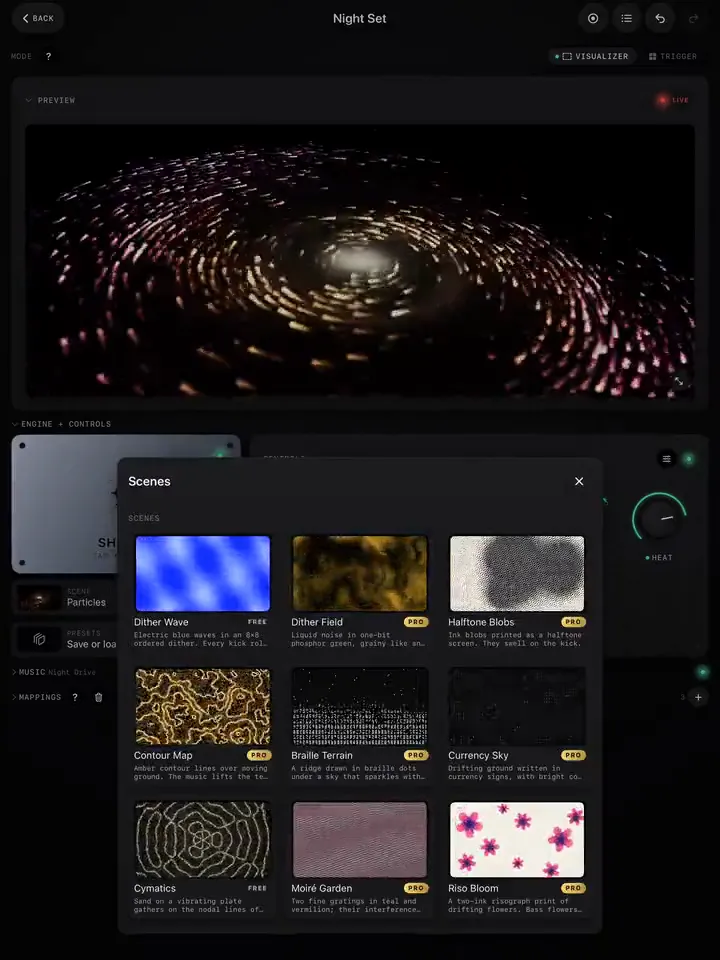
- Tap the Scene row under the engine tile.
- Scroll the picker. Every scene plays a small live preview and says what the music does to it, for example "the kick shakes the grains loose".
- Tap a scene to switch to it.
Free scenes carry a Free badge: Dither Wave, Particles, Cymatics and Paper Theatre. Pro scenes carry a Pro badge. You can also start a Shader project straight from the Store: its Shaders section shows every scene with its looks.
Answer the mappings question
Each scene comes with two music mappings tuned to it: usually the bass on its motion knob and the song's energy on its pattern or palette knob. When you switch scenes, ImmerGround asks Swap music mappings?
- Use new mappings replaces the old scene's built-in mappings with the new scene's. This is the right answer when you are browsing for a look.
- Keep current mappings leaves every mapping as it is. Use it when you built your own wiring and want to try it on another scene.
- Don't ask again remembers your choice. You can change it later in Settings › Shaders › Scene change (Ask, Swap or Keep).
Mappings you made or edited yourself are never removed by a swap. If you would rather start every shader with no mappings at all, turn off Settings › Shaders › Default mappings.
Shape it with the knobs
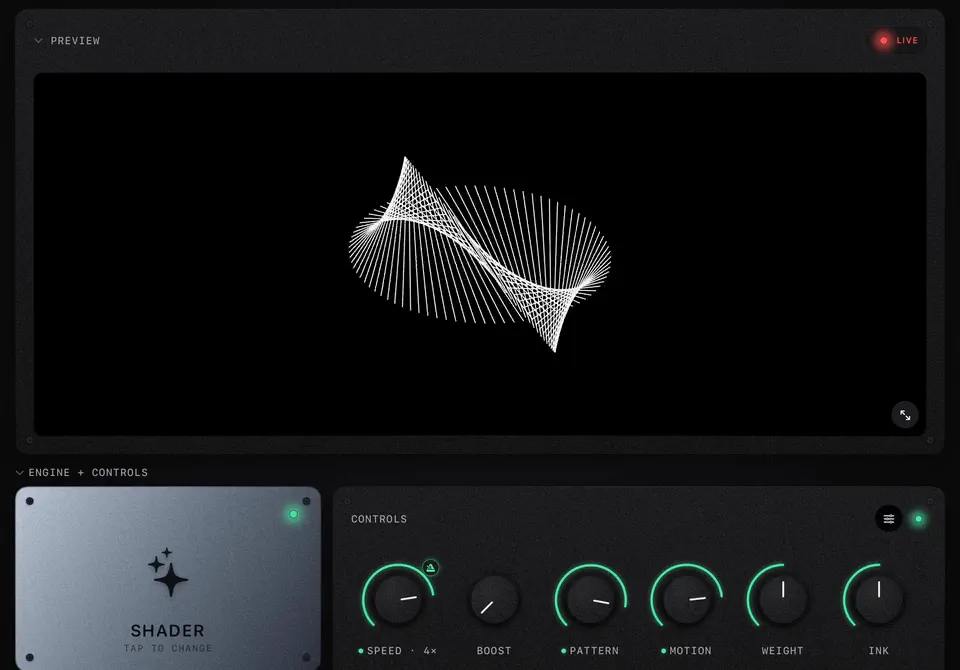
Every shader has the same two knobs first, then four of its own:
- Speed: how fast the scene moves. The centre is normal speed. The metronome next to it locks the speed to the beat (Lock it to the beat).
- Boost: pumps the scene's kick by hand, as if a beat hit. Map a pad to it for extra hits on the drops.
- Four scene knobs: different for each scene. Contour Map has Levels, Line Weight, Roughness and Relief; Op Art has Pattern, Motion, Weight and Ink. Many scenes have a pattern or palette knob that steps through several looks.
A green dot under a knob's name means a mapping drives it. While the music plays, a mapped knob moves on its own; turning it by hand changes where it rests.
Save it as a preset
- Tap the Presets row under the Scene row.
- Type a name, or keep the suggested one, and tap Save.
- The preset appears in the list for that scene. Tap it in any Shader project to load it, or tap the bin to delete it.
Presets live in the app, not in one project, so a look you built for Friday is one tap away in Saturday's project. You can see and manage them all in Settings › Shaders › Presets. A preset of a Pro scene needs Pro to load.
Put effects on top
A shader is not limited to its own knobs. Open the Controls editor (the slider button in the panel's corner), tap Add knob, and choose any effect: colour, glitch, strobe, blur, and the Pro effect packs such as Old TV, Print and Film. They work on top of the scene exactly as they do on video. See Use your own video or photo, and add effects.
Where to go next
- Map the music to any knob to change what the music does.
- Building a look, from blank to set-ready for a method that works on any scene.