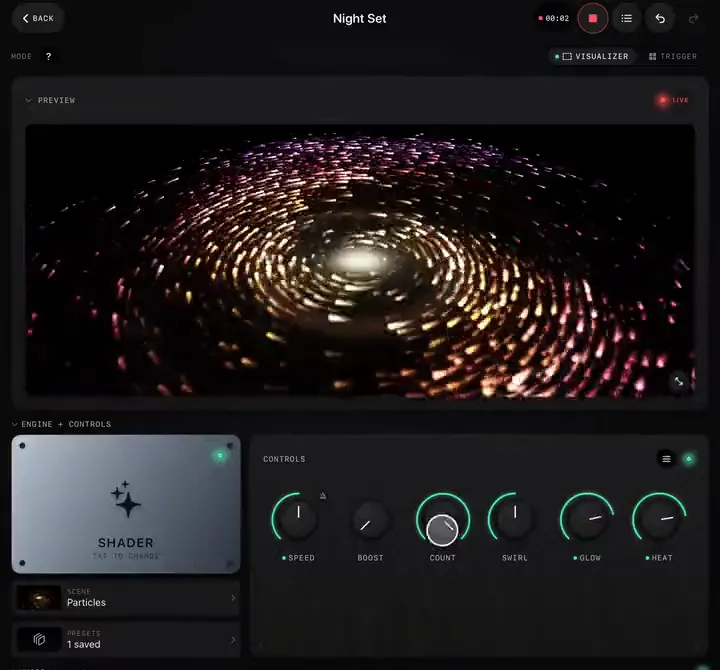
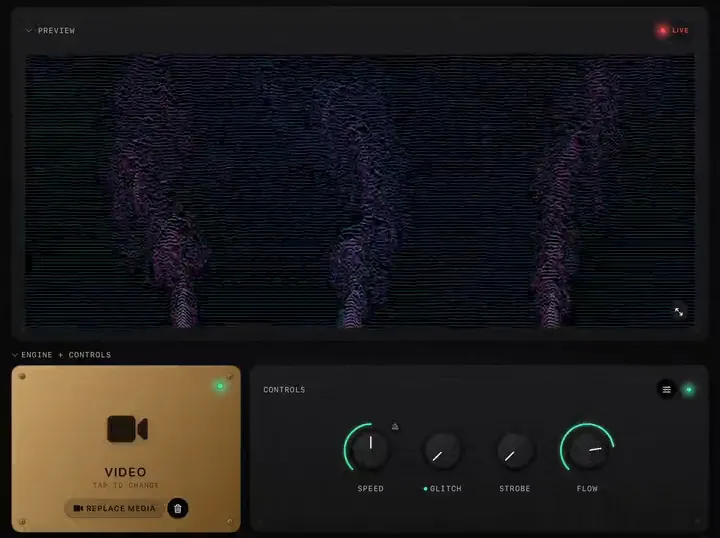
Every performance can be kept. When you hit REC, ImmerGround records a session: every pad hit, knob move, MIDI and audio event on a timeline, plus a real-time video of the output. You can replay it in the app, share the video, or render the session again at a higher resolution and frame rate than the screen could show live.
Record a take
- Start the music and get the look ready.
- Tap the record button in the top bar (on a Mac, ⌘ R). A timer runs while it records.
- Perform: turn knobs, fire pads, switch scenes. Everything is captured.
- Tap the button again to stop.
Open the list button next to it (⌘ L on a Mac) to see your Sessions: date, length, number of events, and whether it has video. Each row has play, share, Render HD, rename and delete.
Replay and share
- Play replays the session in the project, event by event.
- Share exports the take as a video file with the sound, to save or send.
Songs from your library are recorded with the take. Apple Music audio is not (Apple's licence): the visuals are recorded and you add the song back in your editor.
Render it again in HD or 4K
- In Sessions, tap the wand on a row to open Render HD.
- Choose the resolution: 720p, 1080p, 1440p or 4K.
- Choose the frame rate: 30 or 60.
- Tap Render, wait for the progress bar, then Share.
The renderer replays the session on a virtual clock, frame by frame, so the result is not limited by your device's screen or speed: a 4K 60 fps render of a phone performance is as sharp as one from a Mac. It takes longer than the take itself. Renders are 16:9. You can render the same session several times at different settings; each one is kept.
How to get a good take
- Rehearse once with REC off. Find the two or three moves you want to make, then record.
- Start before the music. Hit REC, then play. It is easy to trim the start in an editor and impossible to add a missed intro.
- Play from the library for videos. Library songs give the full analysis and go into the recording, so the visuals and the sound line up.
- Use Save power off. In Settings › Performance, Auto or Best quality keep the live picture at full detail while you record.
Putting it to use: A visualizer video for your own song and Short clips for Reels, TikTok and Shorts.