Video Cues put moments of a clip on pads. Hit a pad, its key or a MIDI pad and the video jumps to that moment. It is how you play a film, a cartoon or your own footage along with the beat: the punchline on the snare, the explosion on the drop, the same two seconds looped through a build.
Open the Cues panel
Cues work in Video projects. With a clip loaded, the Cues panel shows a strip of chips for the clips in the project (Main and any bank slots), a filmstrip of the selected clip with its playhead, and two buttons: Split into pads and Add cue here.
Split a clip into pads
- Tap Split into pads.
- Choose how many pads: 8, 16 or 32.
- Choose where: Evenly (equal parts from start to end) or At scene changes (on the clip's own cuts; it takes a moment on long clips).
- Tap Split. Splitting again replaces the cues on that clip, and you can undo it.
For edited footage (a music video, a film scene, a montage) At scene changes gives pads that each start on a new shot. For one continuous shot (a loop, a drone flight), Evenly is the better choice.
Add or move cues by hand
Let the clip play and tap Add cue here at the moment you want. Select a pad to see its time; the arrows nudge it, and Move here moves it to the playhead. The bin deletes one cue, the bin on the panel header deletes all of them.
Play the pads
Tap a pad and the video jumps there. Each pad also shows the key that plays it: 1 to 9 for the first pads, then Q, W, E and on, from a hardware keyboard on iPad or Mac. The mode decides what happens after the jump:
| Mode | What it does |
|---|---|
| Jump | Jumps there and keeps playing. |
| Hold | Plays while you hold the pad. |
| Loop | Repeats up to the next cue. |
| Once | Plays up to the next cue, then stops. |
Play cues from a MIDI controller
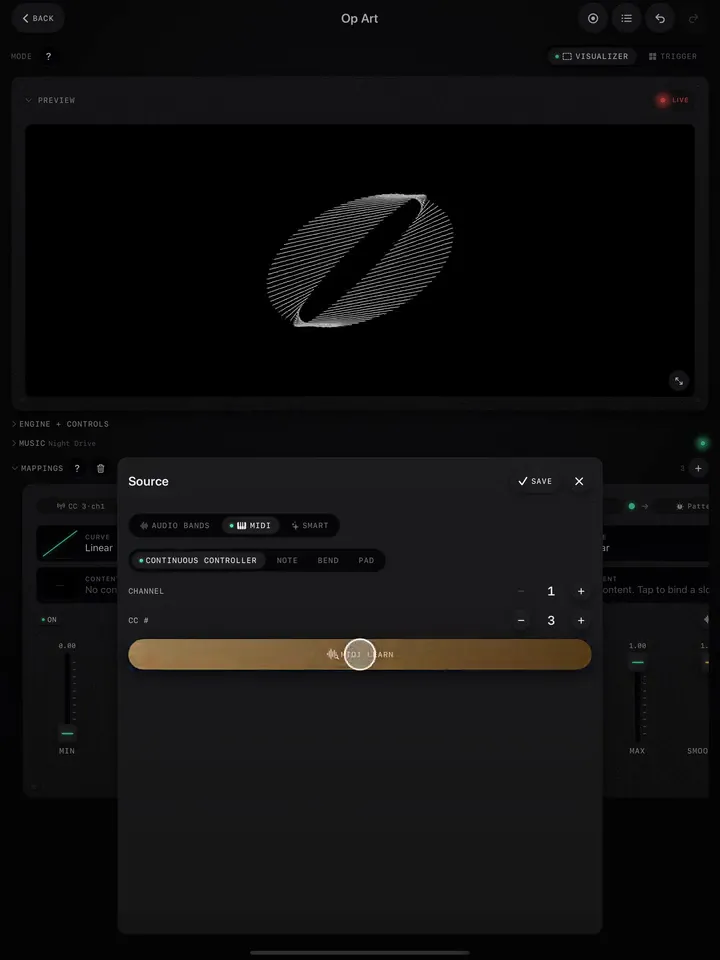
- Tap Learn MIDI pads.
- Hit your controller's pads in order. Each hit takes the next cue.
To change one pad later, select the cue and tap Learn next to MIDI pad.
Keep it on the beat
A cue loop that fits the bar feels locked to the music. Turn on Speed sync (the metronome on the Speed knob): in a Video project it fits the clip, or the loop between two cues, to a whole number of bars. See Lock it to the beat. Effects and mappings keep running on top of the jumps, so a glitch on the snare and a jump on the kick work together.