ImmerGround turns music into moving pictures you can play. Every project, however big it gets later, starts with the same four moves: make a project, choose what it draws, give it music, and put it on a screen. This guide walks through all four on an iPad. The steps are the same on iPhone and Mac; only the layout changes.
Make a project
The first screen is your library. Each card is a project, with a live thumbnail of what it draws, its engine (Shader, Video or Image) and when you last opened it. The Store banner at the top lists shaders, VJ loops and effect packs you can start from.
- Tap New in the top right corner (on a Mac, press ⌘ N).
- Give the project a name, for example the name of the gig or the song, and tap Create.
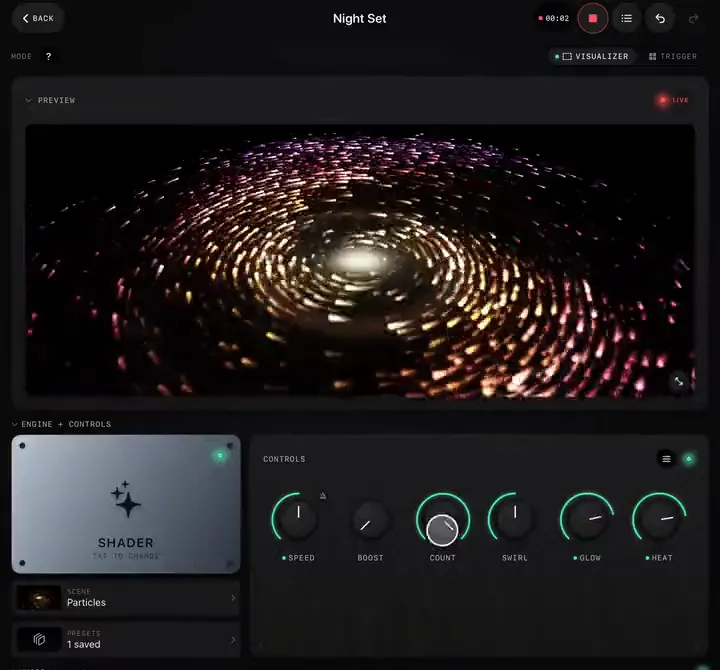
- The workspace opens. A new project starts on the Video engine, waiting for a clip. Tap the engine tile (it says Tap to change) and choose Shader.
A Shader project needs no media at all. It draws its scene live on the GPU, at any size, and starts with the Particles scene: a vortex of light trails that already moves with the music, because every shader comes with two music mappings built in.
Pick a look
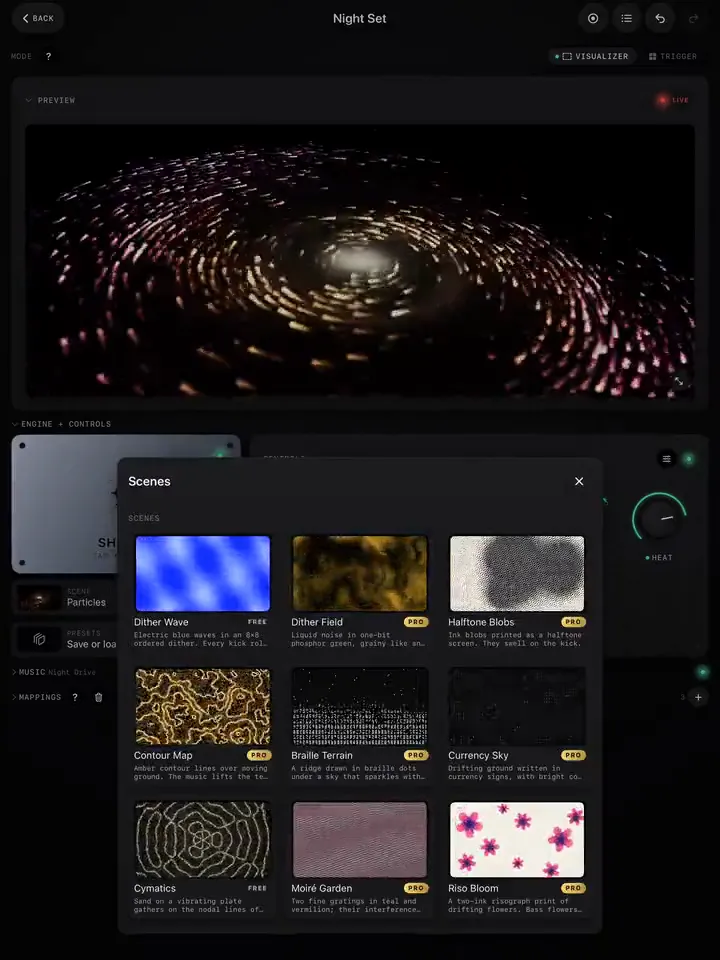
Under the engine tile, the Scene row shows which shader is playing. Tap it to open the scene picker: every scene with a moving preview, a short description of what the music does to it, and a Free or Pro badge.
When you switch scenes, ImmerGround asks whether to swap the music mappings: the new scene comes with its own, tuned to its knobs. Use new mappings is right almost every time. Mappings you made or edited yourself stay either way.
Four scenes are free: Dither Wave, Particles, Cymatics and Paper Theatre. The other 36 need Pro. Pick a shader, shape it, save it as a preset goes deeper.
Give it music
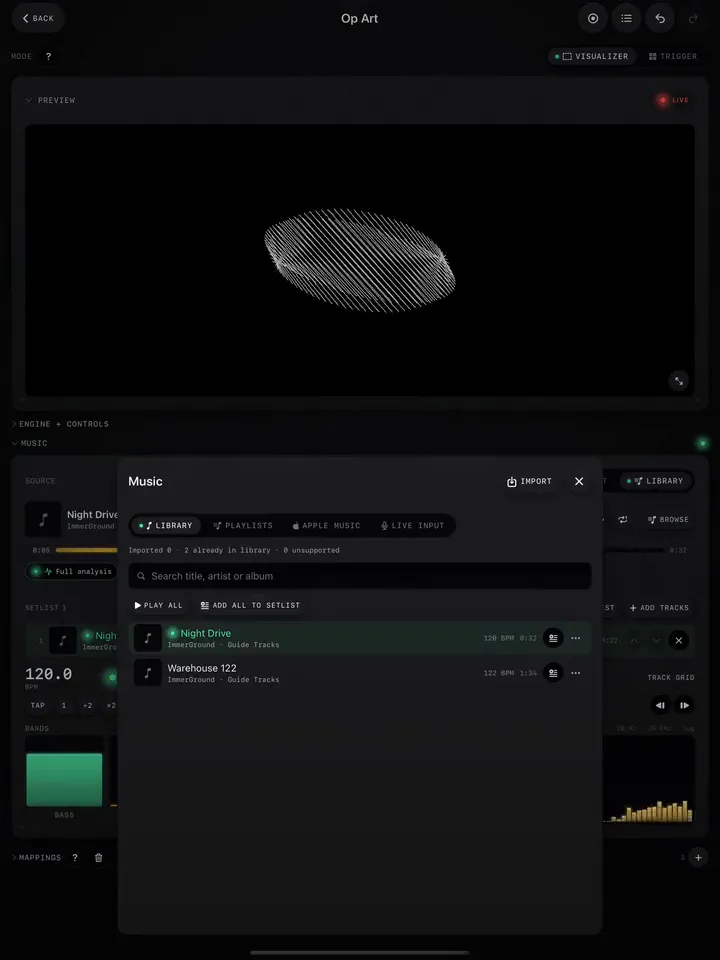
The Music panel is where sound comes in. Open it from its header in the workspace. There are three sources, on the switch in its top right corner:
- Library plays songs you imported into ImmerGround. This gives the cleanest result, because the app reads the exact audio, so the beat tracking and the bands are as accurate as they get.
- Input listens to a microphone, a mixer or an audio interface. Use it when the music plays somewhere else: a DJ booth, a band, a speaker in the room.
- Off stops listening. Knobs and pads still work.
Tap Browse to import songs from Files, or a whole folder. Imported files are copied into the app, so they work offline and after a restart. On iPhone and iPad the music keeps playing when the app is in the background. Get music into the visuals covers every source, including Apple Music and capturing another app on a Mac.
Watch the four meters at the bottom of the panel: Bass, Mid, High and Gate. If they move, the visuals have something to react to. If they sit still, check the source switch first.
Go full screen
The Preview at the top of the workspace shows exactly what goes out. Its corner button takes it full screen; tap anywhere to come back.
Plug in an HDMI adapter or pick an AirPlay screen, and ImmerGround sends the picture there while the controls stay on your device. On a Mac, the Output Preview window does the same job on a second display. Full screen, TVs and projectors has the details.
What to learn next
You now have the loop that everything else builds on. From here, pick the guide that matches what you want to do:
- The workspace, panel by panel: what the other panels are for.
- Map the music to any knob: decide exactly what the bass, the beat or the song's energy does to the picture.
- Fire looks from the Trigger pads: play the visuals like an instrument.
- Record a take and render it in 4K: keep what you played.