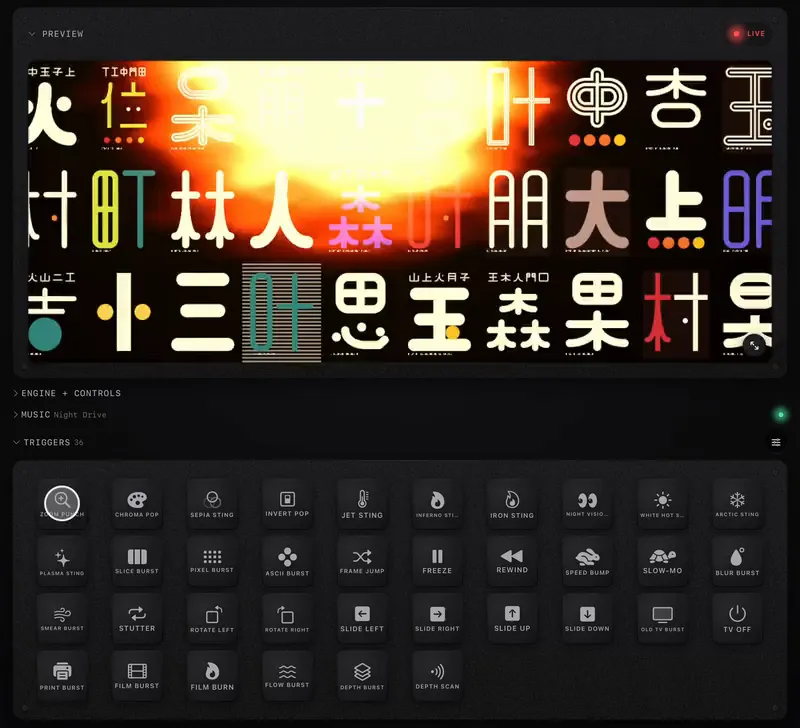
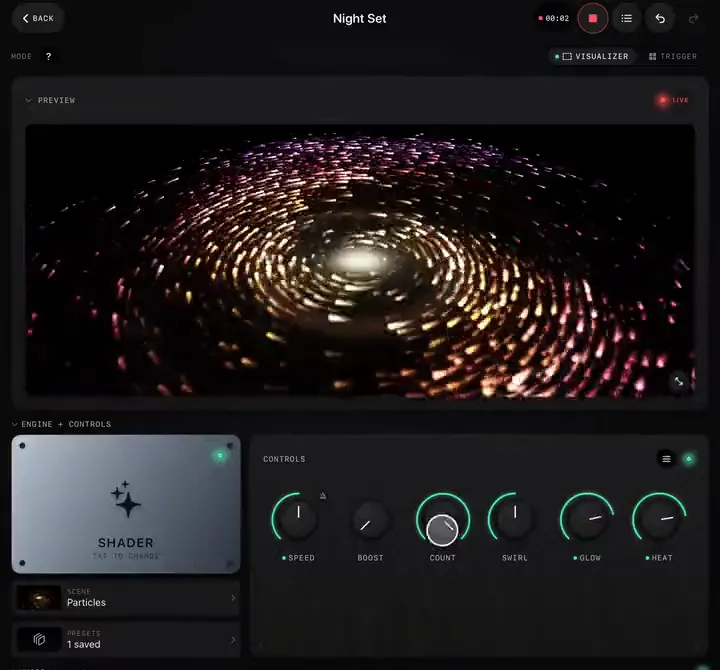
Sooner or later the visuals belong on a bigger screen than the one in your hands: a TV in a bar, a projector behind a band, an LED wall, a second monitor on a desk. ImmerGround sends its output there while the controls stay on your device. This guide covers full screen on the device itself, external screens on iPhone and iPad, the Mac's output window, and checking what drives the picture with Test Mode.
Full screen on the device
Tap the button in the bottom corner of the Preview. The picture fills the screen; tap anywhere to come back. Mappings, MIDI and the music keep running, so a full-screen iPad on a stand with a controller next to it is a complete setup on its own.
A TV or projector from iPhone or iPad
- Connect the screen: a USB-C to HDMI adapter (or Apple's Lightning to HDMI adapter on older iPhones), or AirPlay to an Apple TV or AirPlay screen from Control Center.
- Open your project. The output goes to the external screen, full screen, at that screen's resolution.
- The preview on your device shows Routed to external display and pauses, so the GPU only draws one picture. All the controls stay where they are.
Settings › External Display shows whether a screen is connected.
The Output Preview window on a Mac
On a Mac the output has its own window: open Output Preview from the menu, drag it to the projector or second display, and make it full screen. The main window keeps the workspace on your laptop screen. If the window shows "No project running", open a project in the main window and the output lands there by itself. ⌘ 0 brings the main window back to the front.
Keep it smooth
Settings › Performance has three modes:
- Auto keeps the output smooth on your device. When a heavy scene needs it, the picture renders a little softer and sharpens again as soon as there is room. The right choice for shows.
- Best quality always draws at full resolution and refresh rate. Heavy scenes may drop frames on older devices.
- Save power caps at 60 fps with a lighter picture, for less heat and longer battery. Good for long ambient sets on battery.
For a long gig on iPhone or iPad, keep the device on power and out of direct sun or stage lights.
Check what drives the screen with Test Mode
Turn on Settings › Test Mode and the full-screen preview shows a small panel listing every input driving it right now: the pad, knob or sound, the effect it drives, and the amount. Use it in soundcheck to confirm each controller pad does what you think, then turn it off before doors.
The settings that matter for shows
Before a show, check: Performance on Auto, the Workspace Layout you rehearsed with, MIDI devices listed, Test Mode off, and the external display reading Connected. Then see Visuals for a DJ set or Visuals behind a live band for complete setups.