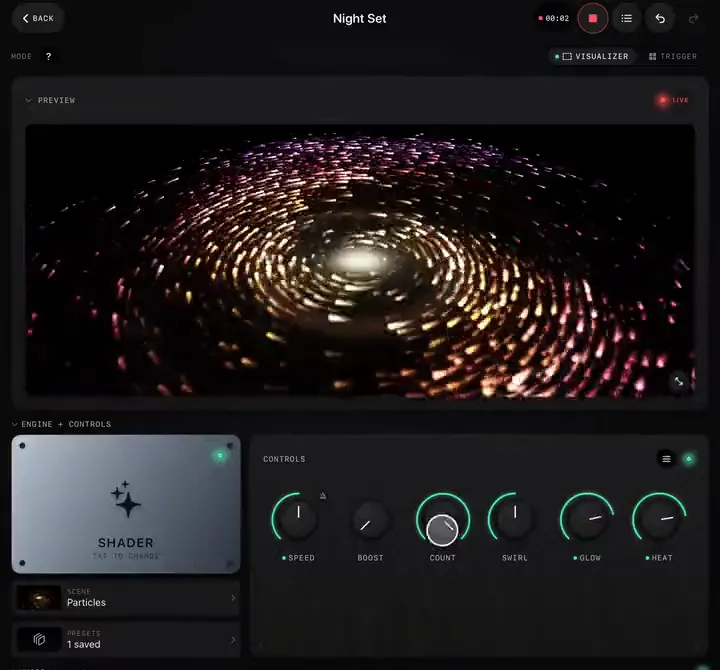
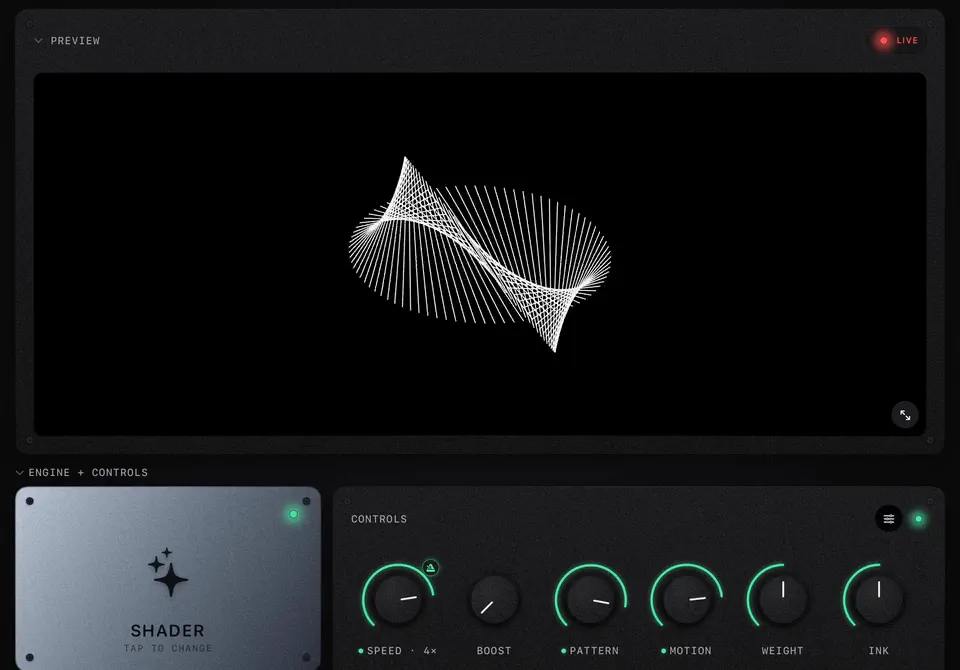
The classic setup: you are playing records, there is a screen or a projector in the room, and nobody else is there to run visuals. This is a complete ImmerGround rig for that night, from the cable out of the mixer to the pads you keep for the drops. It runs on an iPad or a Mac next to the decks, and on an iPhone at a push.
The rig
| Piece | What to use |
|---|---|
| Audio in | The mixer's booth or record output into a small audio interface, then USB-C into the iPad or Mac. On a Mac playing from DJ software, app capture works with no cable at all. |
| Picture out | USB-C to HDMI into the venue's screen or projector. On a Mac, the Output Preview window on the second display. |
| Hands | Optional: a small MIDI controller with 4 to 8 knobs and 8 pads, or just the on-screen pads. |
| Power | Keep the iPad charging through a USB-C hub that passes power, HDMI and the interface. |
Get the sound in cleanly
- In the Music panel, set the source to Input and pick the interface (or, on a Mac, Capture an app and choose your DJ software).
- Leave Auto gain on so quiet mixes and loud peaks both have range, and the Noise gate on for the gaps between tracks.
- Play a track and watch the meters: Bass and Gate should hit on the kick without sitting at the top.
- Check the clock's BPM against your decks. If it reads double or half, tap ×2 or ÷2.
Prepare a handful of looks
Do not build twenty. Three to five looks, saved as shader presets or as projects, cover a whole night:
- Warm-up: something slow and wide. Paper Theatre, Suminagashi or Cymatics at low Speed, with Energy on the palette knob and long smoothing.
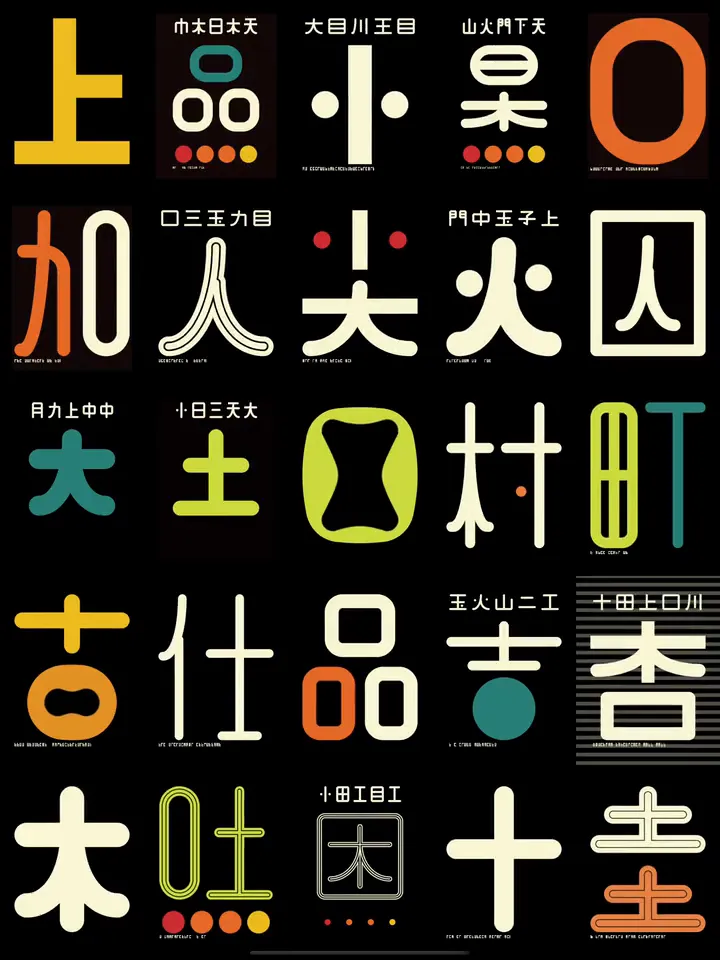
- Main room: something that hits. Wobble Grid, Op Art, Kanji or Dither Wave, Bass on motion with an Exponential curve, Speed sync on.
- Peak: the loudest look you have, kept back. Pixel Sort, Montage or Glitch-heavy video.
Save each as a preset (how) so changing look mid-set is one tap.
Set up the pads for drops
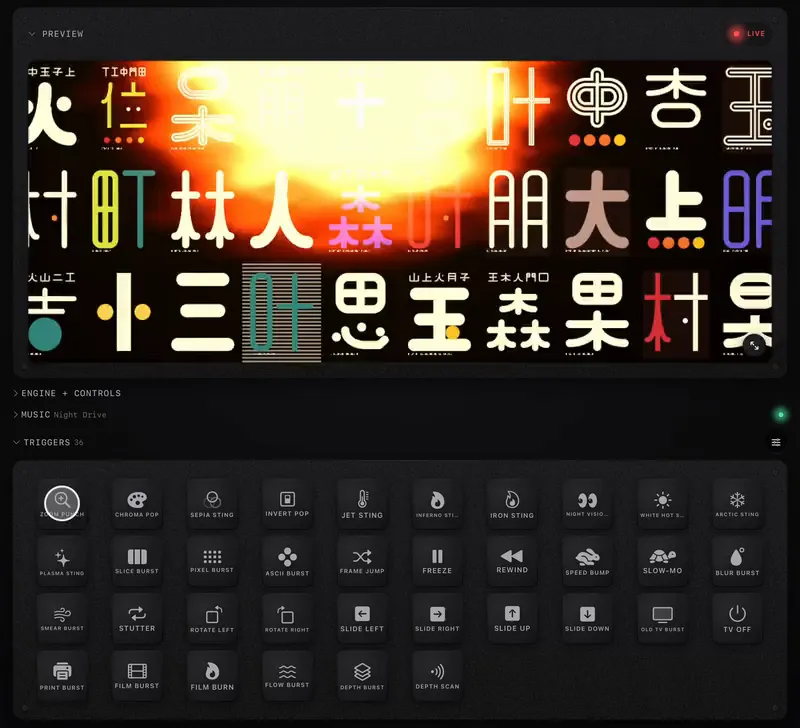
Switch the project to Trigger mode and trim the grid to six or eight pads you will actually use: one invert or chroma pop, one slice or pixel burst, Freeze, a thermal sting, Film Burn or TV Off for the biggest drop of the night. Map them to your controller's pads (how). With a controller, put one knob on Speed, one on a glitch amount and one on Strobe.
During the set
- Let it run. With music mappings doing the work, the screen looks alive with no input from you. Touch it on transitions and drops, not every bar.
- Change look with the music. A new look when a new track's first breakdown hits feels designed. A new look mid-phrase feels like a mistake.
- Use Freeze and Strobe sparingly. They work because they are rare. Keep strobes short, and skip them entirely if the venue asks.
- Record. Hit REC at the start; a few minutes of your set with visuals makes the best promo you will have.
Pre-show checklist
- Device charged and on power, notifications silenced.
- Screen connected; Settings › External Display says Connected.
- Source on Input, meters moving with the soundcheck, BPM right.
- Test Mode on for one minute to check each pad, then off.
- Settings › Performance on Auto.
For the shape of the whole night, read Plan the energy of a set.