A DJ visuals background is the moving picture on the screen behind the decks: a loop on a TV, a projector or an LED wall that keeps the room from staring at a blank wall. Three things decide whether it works. It has to loop without a visible jump, it has to be licensed for a night people pay to attend, and it has to sit behind the music instead of fighting it. This guide covers what makes a good background, where to download free ones that are safe for paid gigs, the five ways to play them from a USB stick to Resolume, how to keep a 120 BPM loop in time with a 128 BPM set, and how to make backgrounds of your own.
A good DJ background is quiet most of the time
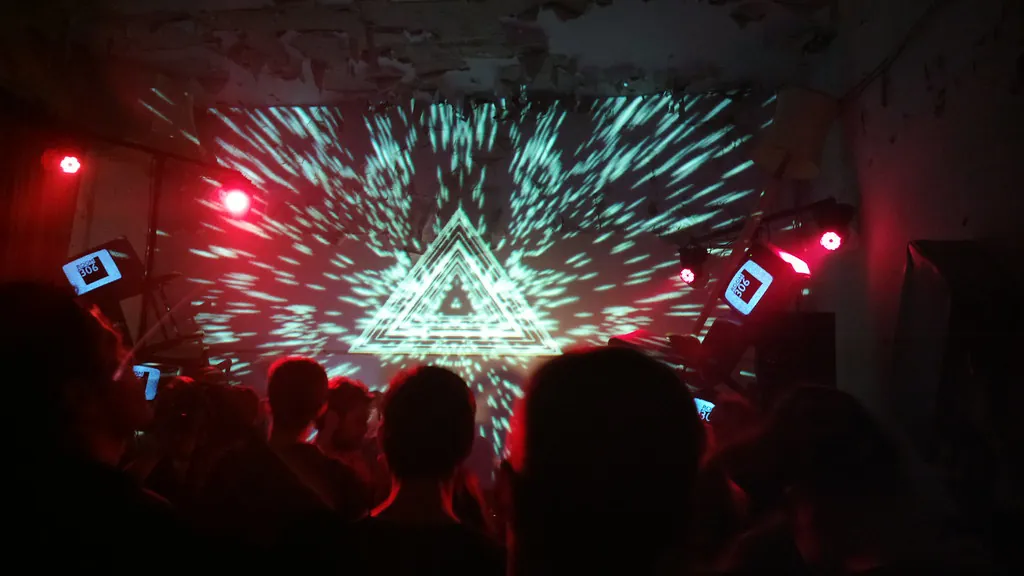
The screen behind a DJ is huge from the floor and the room is dark, so the picture is louder than you think. The backgrounds that work over a long night share a few traits.
- A dark base. Mostly black or deep colour, with the light in shapes that move. A bright full-frame picture turns a dark club into a waiting room and washes out the DJ in front of it.
- Slow motion with room to accent. A loop that moves gently lets the drop feel bigger when something does change, whether that is a cut, a strobe or the next loop.
- No faces, words or logos. People read text and look at faces, and both pull eyes away from the booth. A logo also raises licence questions the abstract loops do not.
- A clean seam. Every loop repeats dozens of times a night. A jump at the loop point, every twelve or sixteen seconds, looks like a fault on a big screen.
- A length that fits the beat. Loops cut to 16 or 32 beats can be locked to the set's tempo; a clip of random length cannot.
- One palette per stretch of the night. Three or four loops that share colours read as a look; a different palette every minute reads as a screensaver.
The screen changes how loud a loop looks. A projector in a dark room is gentle: blacks are grey and colours are soft. An LED wall is the opposite, bright enough to light the crowd, with real black. A loop that looks restrained on a projector can be overwhelming on LED, so on a wall, turn the brightness down in the processor or the software rather than reaching for a darker loop, and keep large white areas for short accents.
Genre gives a rough starting point. Techno tends to suit monochrome, grids, hard lines and strobes; house suits warmer colour and soft fluid motion; trance suits tunnels and light; drum and bass suits glitch and fast cuts; ambient and downtempo suit slow ink and organic growth. None of it is a rule, but it saves time when you build a folder for a specific night.
Where to download free DJ backgrounds that are safe for paid gigs
"Free" on a video site often means free to download, not free to show at a night that charges entry. The licence decides. Public domain and CC0 loops can be used anywhere, commercial included, with no credit. A site's own free licence is usually fine for a gig but has its own restrictions. "Free for personal use" is not permission for a paid event at all. Our guide to free VJ loop sites goes through each big source, its licence and its catches, so this section stays short.
Our free loops: five packs, CC0, cut to the beat
We make ImmerGround, and our free VJ loops were made for exactly this job. All of them are CC0: free for any use, a paid night included, with no credit, no email and no account. Each loop is 32 beats at 120 BPM, 16 seconds, with no visible join, as an H.264 MP4 at 30 frames a second in 4K and 1080p, without sound.
| Pack | Loops | What it looks like | Good for |
|---|---|---|---|
| Thermal | 8 | Liquid, tunnels, orbs, waves and a grid in thermal camera palettes: inferno, iron, plasma, night vision, white hot | Techno and bass-heavy nights |
| ASCII and glitch | 9 | Character grids, RGB split, slices, pixel bursts and a sky of currency signs | Drum and bass, breaks, anything fast |
| Dither and halftone | 8 | Ordered dither waves, halftone ink, contour maps, braille terrain | Minimal, electro, a retro look |
| Living matter | 8 | Coral, mazes, spots, splitting cells and frost, grown by a simulation | Deep house, ambient, slow builds |
| Ink and smoke | 8 | Ink drops, smoke, molten gold and colliding jets from a fluid simulation | House, downtempo, warm-up sets |
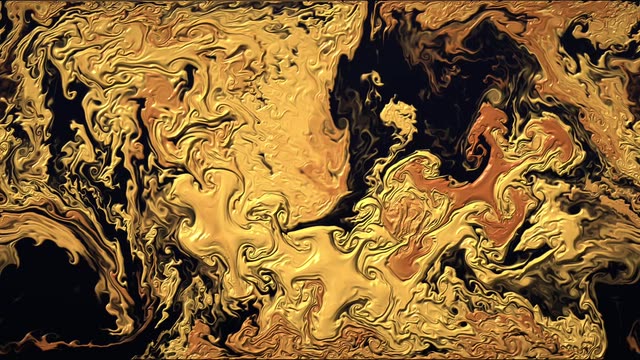

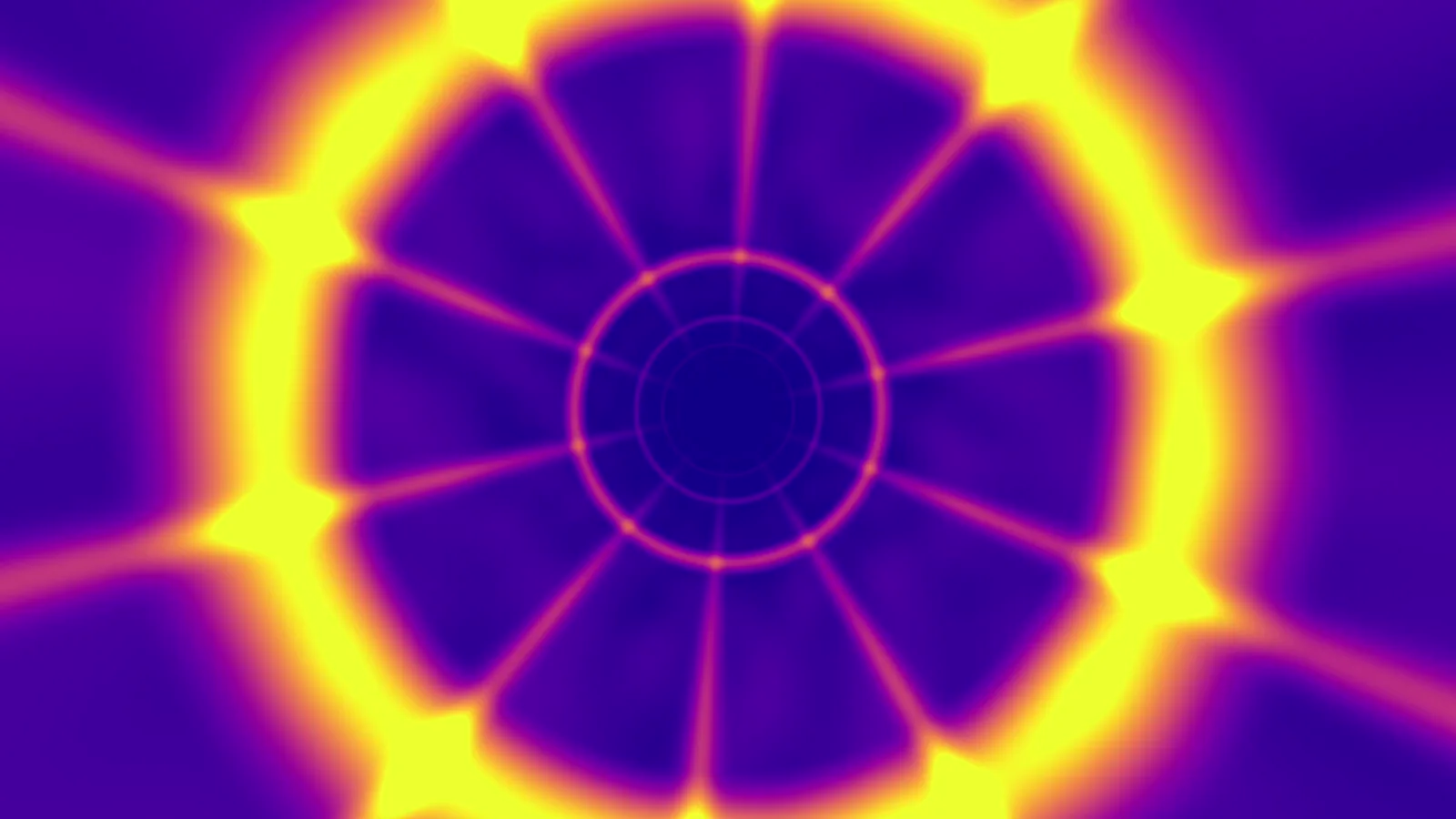
The honest limits: 41 loops is a small library next to the stock sites, every loop is abstract, and all of them run at 120 BPM, so at other tempos you either lock them to the set or let them drift (section five covers both). They also share a look, because they are made with the same effects and simulations, which is good for a coherent night and less good if you want every hour to look different.
The stock sites, with a better search
Pixabay and Pexels both allow commercial use with no credit and have thousands of clips, but most of them are not real loops: they are trimmed shots that jump at the end. Search for what you want to see, such as "abstract tunnel", "particles black background", "ink in water" or "neon lines", rather than "VJ loop", and check each result for a seam before it goes in the folder. The full comparison covers the rest, including the sites whose "free" is personal use only.
Pick the file for the screen, not the biggest one
A 4K file is not automatically the better background. Match the file to what will play it and to the screen it lands on.
| Played from | Take | Why |
|---|---|---|
| A TV's own media player, from a USB stick | 1080p H.264 MP4 | The format TVs and cheap players are most likely to play smoothly |
| A phone or an iPad | 1080p H.264 MP4 | Smooth playback, smaller files, less battery |
| A laptop into a 1080p projector | 1080p | The projector cannot show the extra detail of 4K |
| A laptop into a 4K screen or a large LED wall | 4K | Here the detail is visible from the floor |
| Desktop VJ software on a fast laptop | 4K H.264, or a VJ codec such as HAP or DXV if the pack offers one | VJ codecs trade disk space for smoother switching |
LED walls are the exception to every rule here. They often have odd sizes and aspect ratios, set by how many panels the venue owns. Ask the venue for the wall's pixel size before the night and crop or position your loops for it, rather than finding out from the floor that the top third of your picture is missing.
Five ways to play a background behind the decks
From cheapest to most flexible. The right one depends on whether anyone will touch the visuals during the night, and whether they need to follow the music.
| Setup | What you need | In time with the music? | Cost |
|---|---|---|---|
| 1. The TV plays it | A USB stick and the TV's media player on repeat | No | Nothing |
| 2. A laptop on a second screen | A media player set to loop, full screen on the projector | No | Nothing (VLC is free) |
| 3. The DJ software plays it | rekordbox, Serato with Video, or VirtualDJ, with a video output | Clips follow the decks | Depends on your plan |
| 4. VJ software | Resolume or similar, plus a controller if you like | Yes, by beat count | From €299 for Resolume Avenue |
| 5. Visuals that react | An app or tool that moves the picture with the sound | Yes, from the audio | Free to start |
1 and 2: a loop on repeat
The simplest backgrounds run themselves. Put a folder of loops on a USB stick, open the TV's media player and set it to repeat the folder, or plug a laptop into the projector and play the folder in VLC with looping switched on, full screen on the second display. Nothing follows the beat, but a slow, dark loop does not need to, and nobody has to stand at a laptop all night. Test the stick in the actual TV before the night: some media players pause between files or show the file name on screen.
3: inside the DJ software
The big DJ programs can play video in the decks, so a clip mixes with the track it belongs to. On rekordbox's plan page, video output is listed on every plan from Free up, and its video manual says all video functions are on the Creative plan, so the lower plans have fewer. In Serato, video comes with the Video expansion, which its pricing page includes in DJ Suite ($14.99 a month or $499 to buy) but not in DJ Pro. VirtualDJ plays video files in its decks too, and it is free for home use without a controller. This route suits DJs who play music videos or want a clip to change with each track; for abstract backgrounds, it is more work than it is worth.
4: VJ software
Desktop VJ software is built for this: a grid of loops, layers, effects and a crossfader, with a BPM clock that keeps clips in time. In Resolume, set a loop's beat count to 32 and it plays at the set's tempo. Resolume Avenue is €299 and Arena €799, per computer, on Mac and Windows; the demo is fully functional but adds a watermark and a robotic voice. Our comparison of Resolume alternatives covers the cheaper and free options.
5: visuals that react to the music
A loop plays the same way whatever the DJ does. Reactive visuals listen to the music, through a microphone or a line in, and move with it, so the drop hits on screen when it hits in the room. You can try it free in our browser visualizer: load one of the loops as your clip, open the microphone, and the effects pulse with the bass and fire on the beat.
In the ImmerGround app, which we make, the same idea runs on iPhone, iPad and Mac with a screen out over HDMI or AirPlay. Load a loop as the clip in a video project and the music drives effects on it. Or skip the loops: the app's 40 shaders are generative scenes, such as Wobble Grid, Op Art and Kanji, that move with the music on their own, and Speed sync locks a shader's speed to the beat. Four shaders are free; ImmerGround Pro is $6.99 a week or $39.99 a year.
For a livestream: OBS behind the DJ camera
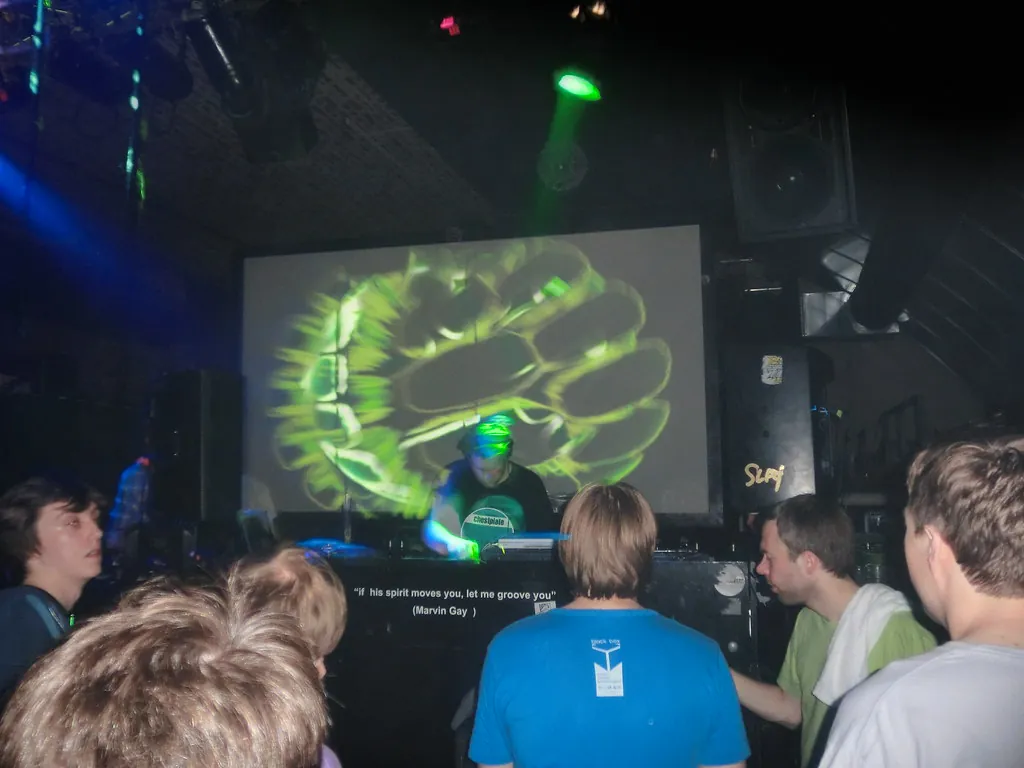
Streamed DJ sets use backgrounds too, and here the screen is a video encoder rather than a wall. In OBS, add the loop as a Media Source with looping switched on, put it at the bottom of the scene, and place the camera on top of it. Use 1080p files for a 1080p stream: a 4K loop adds work for the computer and nothing a viewer can see.
The bigger issue is compression. A stream squeezes every frame into a limited bitrate, and busy, grainy or fast-changing loops are exactly what compression handles worst: fine particles turn to mush and fast cuts smear. Slow loops with large shapes and clean edges survive a stream far better, so the calm end of your folder is also the stream-friendly end. If the background is the main picture, with the DJ small in a corner, test a minute of it as a private stream before the live one.
Keeping a 120 BPM loop in time with a 128 BPM set
Most free loops, ours included, are made at one tempo, and DJs rarely play at exactly that tempo. There are four ways to deal with it, and the right one depends on the loop.
- Lock it to the beat. In VJ software, set the clip's beat count (32 for our loops) and it plays at the set's BPM, whatever that is. This is the clean answer when you have the software.
- Change the speed by the ratio. To play a 120 BPM loop at 128 BPM, run it at 128 divided by 120, about 1.07 times speed. At 140 BPM it is about 1.17. A player that lets you set playback speed can do this, but it will not follow a DJ who changes tempo.
- Let it drift. Slow, organic loops such as ink, smoke and living matter have no hard pulse, so nobody sees them drift. Save the loops with a strong pulse for a setup that can sync them.
- Put the beat on top. If effects that follow the music sit on the loop, the hits land on the kick even when the loop underneath runs at its own speed. This is the idea behind route five above.
If you do not know the set's tempo, our free BPM finder reads it from a track file or by tapping along, and the ratio above does the rest.
The quick check is to watch the loop for one bar with the music playing. If you can tap along with its movement, it needs syncing; if it just flows, let it run.
Where the usual advice breaks: the busiest loop is the wrong background
The common advice is to download the most impressive pack you can find and play the best clips. On a laptop screen, the most impressive loops are the busiest: dense particles, fast cuts, saturated colour. On a wall behind a DJ, those are the ones that wear out first. Ten minutes of a busy loop is tiring to look at, it competes with the lights, and it leaves nowhere to go when the music builds.
Plan a night in three energy levels instead. Keep most of your folder calm: dark, slow loops for the warm-up and the long middle of the set. Keep a few medium loops for when the room fills. Keep two or three of the busiest for the peak and the drops, and use them for minutes, not hours. Our guide on how to make visuals for a DJ set works through that plan in detail, from the first loop to the last track.
The other half of the advice that breaks is "4K everything". A cheap player struggling with a 4K file stutters, and a stutter on a wall is far more visible than the difference between 4K and 1080p on a projector that shows 1080p anyway.
Make backgrounds of your own
Downloaded loops get you through the first nights. Your own make the visuals yours, and they are easier to make than they look.
- Record from the browser. Our free visualizer records up to 60 seconds in 16:9, 9:16 or 1:1 at up to 1080p, with ImmerGround's effects on your clip, photo, camera or one of its scenes, moving with a song or the microphone. Recordings carry a small immer ground mark in the corner.
- Render from the app. In ImmerGround, every session records the timeline and can be rendered again with Render HD at 720p, 1080p, 1440p or 4K, at 30 or 60 frames a second, in 16:9. Play a shader or a clip to a track you like and render the take.
- Film your own source. Ink dropped in water, smoke against black card, city lights out of focus, a lava lamp: shot on a phone against a dark background, any of these makes good raw material under effects.
- Layer two loops. In VJ software or a video editor, put a slow, dark loop underneath and a sparse, bright one on top with a screen or add blend mode. Two free loops combined this way rarely look like anyone else's, and a change of the top layer alone gives the same night a new look.
- Hide the seam. A recorded take does not loop by itself. Trim it to a whole number of beats, then crossfade the last beat into the first in any video editor, which is how our simulated packs loop without a join.
The checklist before the night
- Every loop in the folder is licensed for a paid event: CC0, public domain, or a licence that names commercial use.
- The files play on the actual device: the TV, the player or the laptop that will run them, not just your editing machine.
- The folder is ordered by energy: calm, medium, peak, so you can find the right loop in the dark.
- You know the screen's size, especially for an LED wall, and the loops are cropped for it.
- There is a backup: a second copy of the folder on a stick or a phone, and one calm loop you can leave running if everything else fails.
Where to get it
- Free VJ loops. 41 loops in five packs, 4K and 1080p, 120 BPM, CC0, no email or account.
- Free live audio visualizer. Load a loop, open the mic, and the effects move with the music in your browser; records up to 60 seconds. Free, nothing uploaded.
- Free BPM finder. Finds a track's tempo, so you know how far a 120 BPM loop has to speed up.
- ImmerGround. iPhone, iPad and Mac. Free to download; ImmerGround Pro is $6.99 a week or $39.99 a year.
What to do next
- Download one pack that fits your music and play three of its loops on the screen you will actually use.
- Choose the playback route: a USB stick for a night that runs itself, VJ software or reactive visuals for one that follows the music.
- Build a folder in three energy levels, mostly calm, with a few loops saved for the peak.
- Check the tempo plan: lock pulsing loops to the beat, and let slow ones drift.
- Make one loop of your own in the browser visualizer, so the background on the wall is yours.