ImmerGround ships with exactly 30 distinct hardware-accelerated video effects processed natively through Apple Metal. This effect stack operates directly on the GPU, avoiding costly CPU roundtrips, allowing multiple layered parameters to respond in real-time to incoming audio transients, MIDI CC values, and visual tracking coordinates. By mapping these effects to a tactile controller, performers trigger precise visual state changes that align perfectly with the sonic environment.
Real-Time GPU Shader Pipeline Architecture
The core of the ImmerGround visual engine relies on a strictly controlled render pipeline built entirely on Apple Metal APIs. Video frames entering the application from an iPhone camera, external USB capture card, or local file storage bypass standard CPU processing paths.
The system copies the incoming video feed into a zero-copy texture buffer located on the unified memory of Apple Silicon devices. This hardware architecture allows the GPU to read pixel data immediately after capture, applying multiple passes of mathematical operations at 60 frames per second.
Each of the 30 included effects exists as a specialized fragment shader. A fragment shader calculates the final color of every individual pixel on the screen by sampling the original texture and executing a specific set of math operations.
The ImmerGround application chains these shaders together, passing the output texture of one effect directly into the input of the next. This sequential chaining ensures strict order of operations.
For example, rendering a thermal look before a glitch slice produces a drastically different visual result than applying the glitch slice before the thermal color remapping. Performers arrange their effect chains to build complex visual states.
The real advantage of this pipeline emerges when mapping control signals. Every parameter exposed by these fragment shaders accepts direct modulation.
The internal audio engine calculates Fast Fourier shape (FFT) data, separating incoming sound into defined frequency bands. Performers assign the amplitude of a kick drum (low frequency) to the intensity parameter of a specific shader.
Because the entire system remains on the GPU and unified memory architecture, the parameter update happens simultaneously with the frame render. The latency sits entirely within the hardware refresh rate limits, meaning the visual impact hits the screen exactly when the audio transient hits the speakers.
Here is a detailed breakdown of the GPU resource cost associated with different shader categories. Performers must balance their effect stack against hardware limitations, especially when running 4K output resolutions to multiple projectors.
| Shader Category | GPU Cost | Memory Bandwidth | Audio Modulation Suitability | Maximum Safe Chain Instances |
|---|---|---|---|---|
| Color Remapping (Thermal) | Low | Low | High (Palette shifting) | 8+ (Negligible impact) |
| Texture Disruption (Glitch) | Medium | High | High (Triggering slices on transients) | 4 to 6 |
| Spatial Translation (Kaleidoscope) | High | Very High | Medium (Rotation speed) | 2 to 3 |
| Temporal Buffer (Slit-scan) | Very High | Extreme | Low (Prone to visual mess) | 1 |
The Looks Category: Thermal, Monotone, and Color Shifts
The Looks category houses effects that manipulate the color values of individual pixels without altering their spatial position. These fragment shaders read the luminance and chrominance data of the source texture and remap those values based on predefined lookup tables or mathematical formulas.
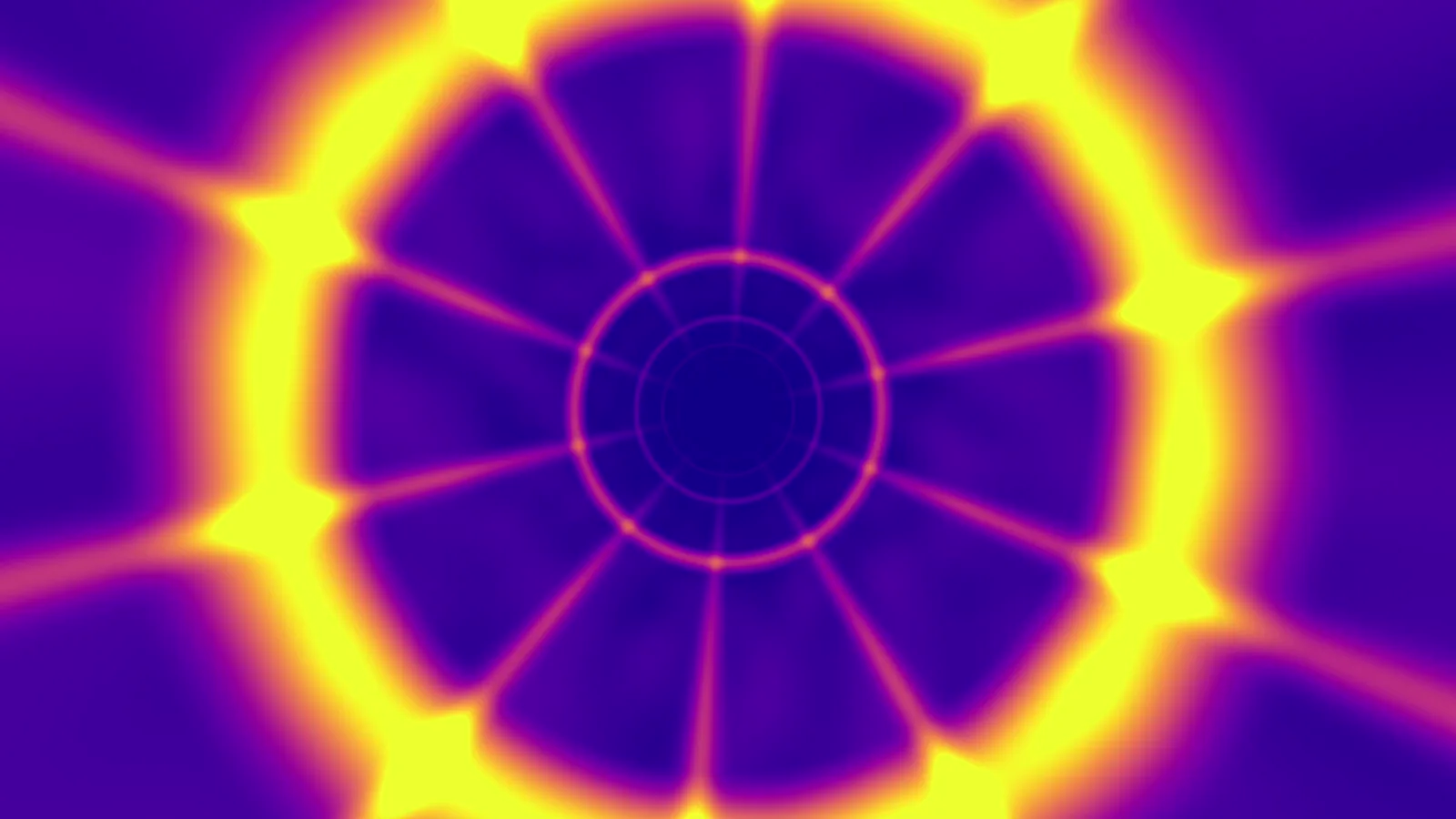
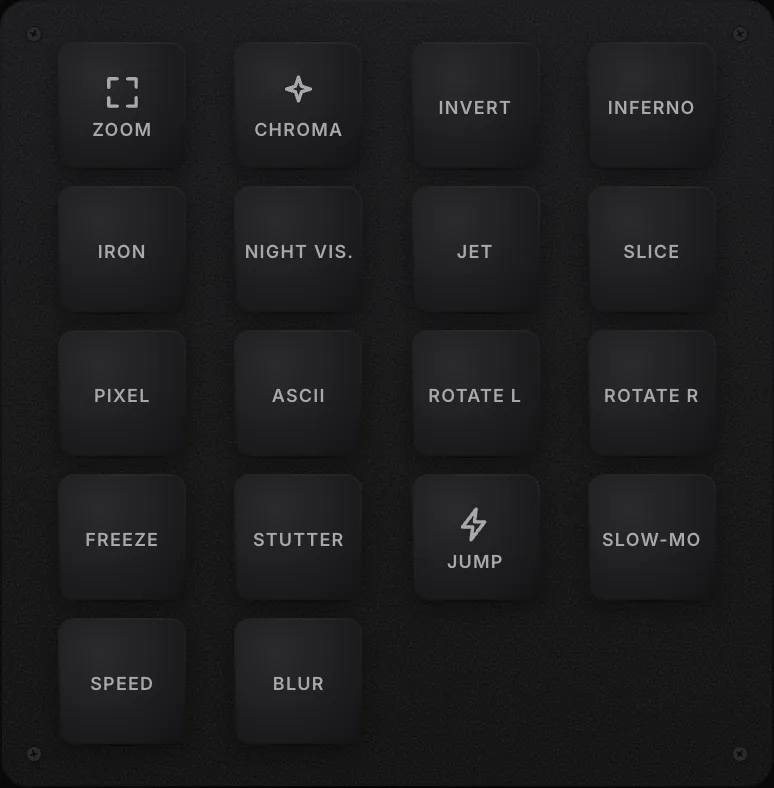
The most prominent subset within this category is the Thermal set, which emulates various infrared and heat-sensing camera modes. The Thermal set includes inferno, arctic, iron, jet, night vision, plasma, and white hot.
Inferno maps dark pixels to deep reds and bright pixels to blinding yellow, simulating extreme heat. Arctic reverses this logic, pushing dark areas into deep blues and cyan.
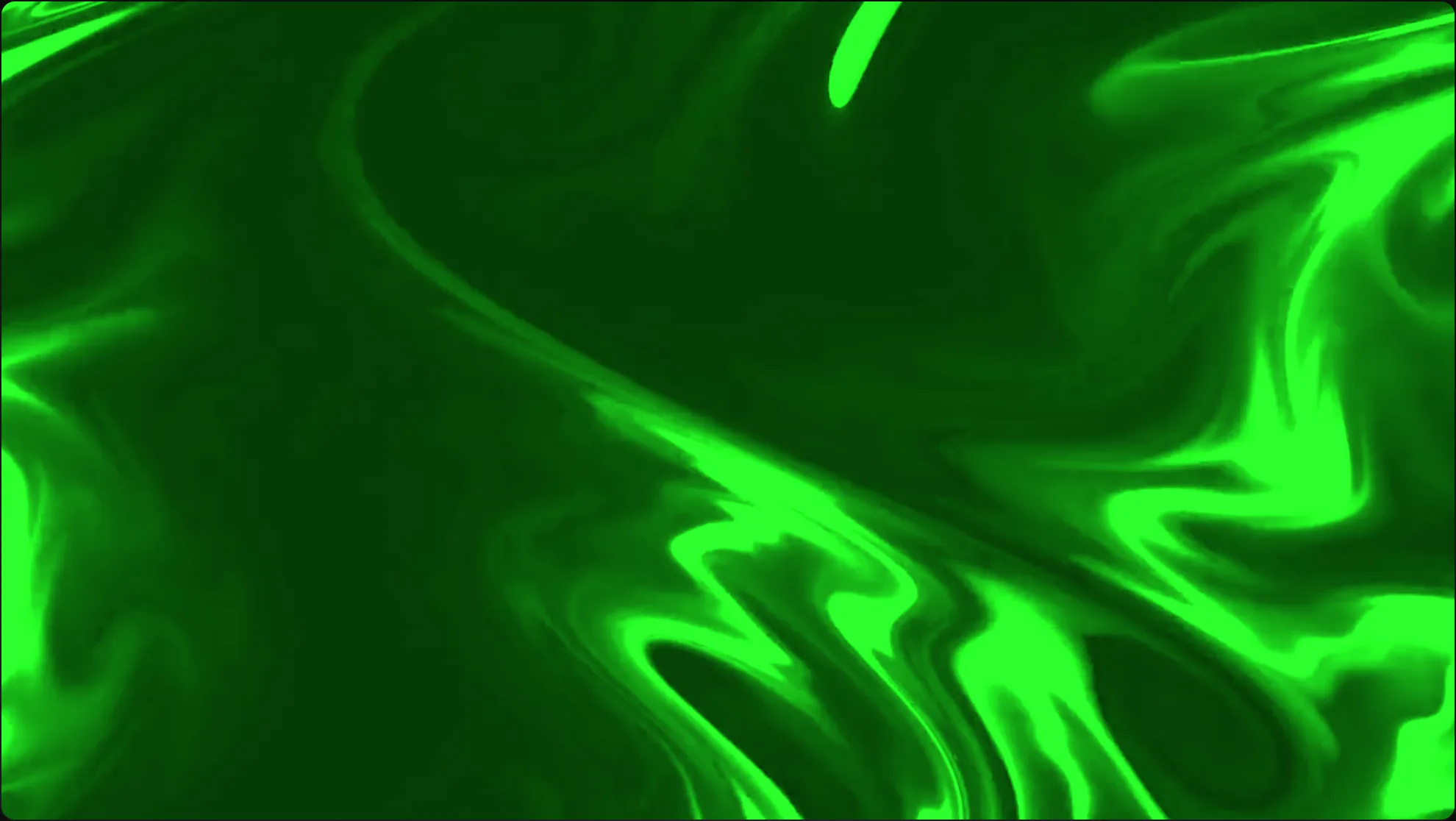
Night vision applies a strict monochromatic green gradient, simulating older military optics. Plasma utilizes high-contrast purple, orange, and yellow banding, creating intense psychedelic visuals when applied to high-contrast source video.
Beyond the thermal maps, the Looks category provides standard utilitarian adjustments. Sepia warms the image for archival aesthetics, monochrome strips all color data, invert flips the RGB channels entirely, and color shift rotates the hue values across the entire spectrum.
Performers map the color shift parameter to a slow-moving LFO or a MIDI knob, allowing them to slowly drag the entire color palette of the room throughout a set. Applying a hard invert triggered by a snare drum produces a massive visual strobing effect that punctuates heavy drops in electronic music.
- Thermal Inferno: Maps luminance to a red-yellow gradient. Excellent for high-energy bass music sets.
- Thermal Arctic: Maps luminance to blue-cyan gradients. Ideal for ambient or minimal techno performances.
- Invert: Flips all color channels. Highly effective when mapped to quick MIDI button presses for manual strobing.
- Color Shift: Rotates the global hue. Best assigned to a continuous rotary encoder on a MIDI controller.
The Glitch and Texture Category
The Glitch and Texture category contains shaders designed to break, distort, and stylize the video feed. These effects manipulate the coordinate reading of the texture, pulling pixels from incorrect locations or applying mathematical noise to the output.
This category includes RGB split, chroma, glitch, slice, smear, pixelate, and ASCII. RGB split separates the red, green, and blue color channels, shifting them horizontally or vertically away from the center.
Mapping the distance of the split to the amplitude of a synthesizer lead creates a visual representation of the sound's width and distortion. Chroma applies intense color saturation noise, similar to a failing VHS tape tracking mechanism.
The glitch and slice effects divide the screen into horizontal bands, randomly shifting the bands left or right based on an internal noise generator. Smear leaves a trail behind moving objects, blending the current frame with previous frames.
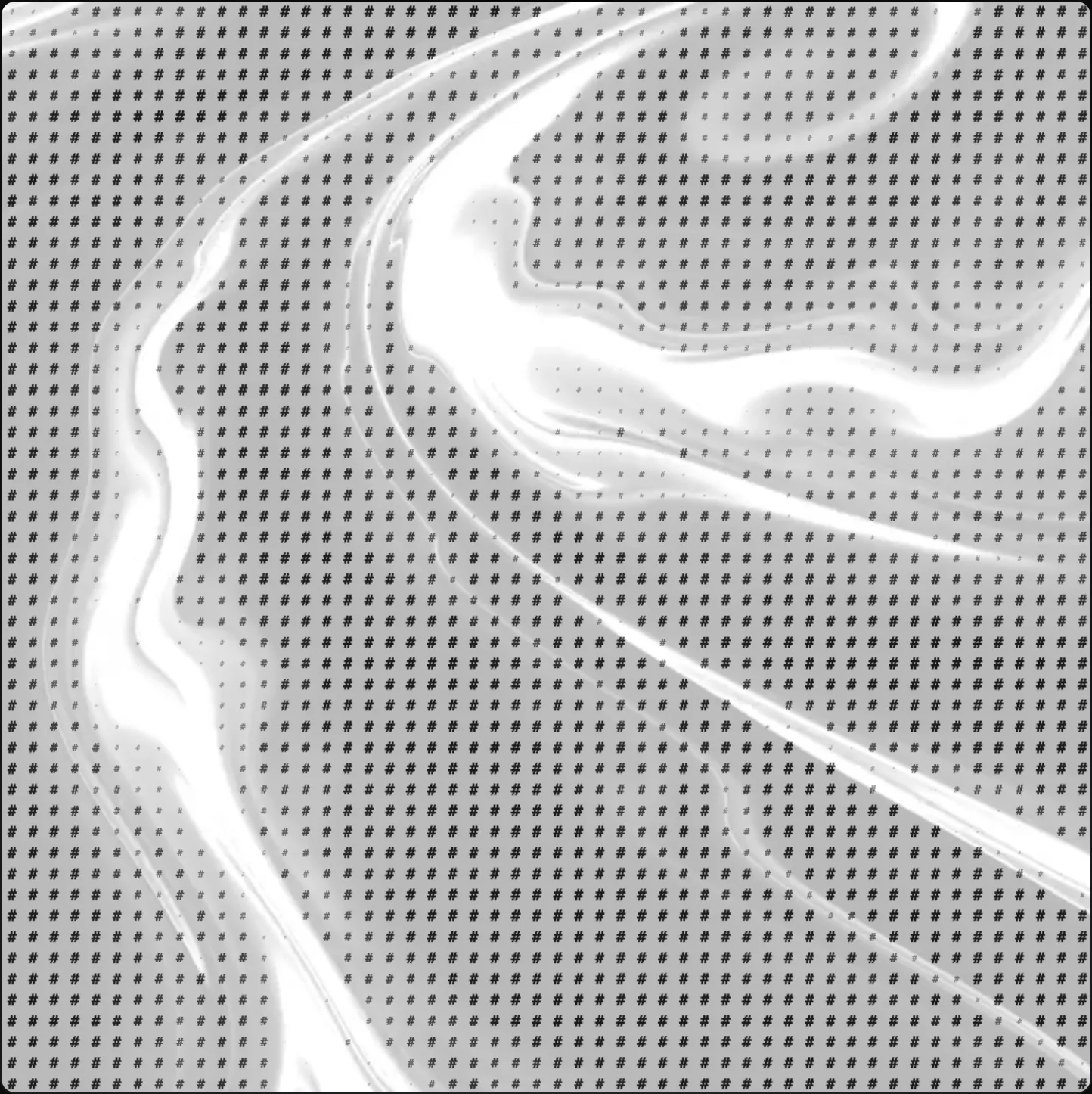
The ASCII effect replaces blocks of pixels with text characters that match the original luminance. Bright areas render as dense characters like hashes or ampersands, while dark areas render as periods or blank spaces.
This creates an immediate terminal-style aesthetic. Texture effects require careful handling in a live environment.
Stacking too many glitch operations renders the video feed unrecognizable. Visual artists often place a single glitch effect at the end of their chain, assigning its activation toggle to a momentary button on their controller.
This allows them to punch in brief moments of chaos during musical transitions, returning to a clean feed instantly upon release.
The Motion Category
Motion effects alter the geometry and spatial mapping of the entire frame. This category includes zoom, scale, parallax, rotate, kaleidoscope, and blur.
Unlike color shaders, motion shaders change where pixels appear on the screen, often requiring the GPU to sample outside the boundaries of the original image. ImmerGround handles this by either clamping the edge pixels or wrapping the image continuously.
The zoom and scale parameters offer direct control over the image size. Mapping the zoom parameter to a low-frequency oscillator creates a breathing effect, where the video slowly pulses in and out.
Rotate spins the entire frame around a central axis. Kaleidoscope mirrors the image across multiple angled slices, creating complex symmetrical patterns from simple source material.
When applying a kaleidoscope effect to a live camera feed of the crowd, the resulting visual obscures individual faces while maintaining the energy and movement of the room. Blur operations consume significant GPU resources because they require the shader to sample dozens of adjacent pixels for every single pixel rendered.
ImmerGround utilizes optimized Gaussian blur algorithms, but heavy blur applications still impact frame rates on older hardware. Performers use blur to soften the visual feed during ambient intros, slowly dialing down the blur radius as the music builds in intensity.
- Zoom: Scales the image uniformly. Perfect for tying to a kick drum for a pulsing, pumping visual stage.
- Rotate: Spins the canvas. Assign this to an endless encoder to manually spin the room during long build-ups.
- Kaleidoscope: Mirrors sections of the screen. Excellent for turning abstract textures into structured geometric art.
- Blur: Softens the image. Use sparingly on older iPads, but highly effective for creating depth of field effects.
The Time Category
Time-based effects manipulate the sequence and playback rate of incoming frames. This requires the application to store recent frames in memory buffers, heavily utilizing the unified memory architecture of Apple Silicon.
The Time category includes strobe, freeze, frame jump, stutter, reverse, slow-mo, speed bump, and directional slides. The strobe effect toggles the opacity of the video feed, flashing black frames at a specified rate.
Syncing this rate to the master BPM of the DJ deck ensures the visual strobing aligns perfectly with the music. Freeze captures the current frame and holds it on screen, ignoring all incoming video until released.
Frame jump and stutter pull older frames from the memory buffer, creating a choppy, broken playback style reminiscent of digital streaming errors or bad data connections. Reverse and slow-mo require larger memory buffers.
The application records a specific duration of the feed, then plays it backward or at a reduced frame rate. Speed bump rapidly accelerates the playback of buffered frames to catch up to real-time.
Directional slides push the entire frame off the screen in a specified direction, replacing it with the next incoming frame. These transitions prove vital when switching between different cameras or generative inputs during a set.
Managing memory usage becomes critical when employing time-based effects. Storing 60 frames per second of 4K video consumes memory rapidly.
Performers relying heavily on time buffers must ensure their iPad or Mac possesses adequate unified memory to prevent frame drops or system instability.
Motion Tracking Integration with Shader Effects
The real power of the ImmerGround engine lies in its ability to combine Apple Vision framework motion tracking with the shader parameters. The application analyzes incoming video feeds, identifying faces, bodies, and specific object trajectories.
Performers route this tracking data directly into the effect stack. Instead of mapping an effect parameter to a MIDI knob, the performer assigns it to the X and Y coordinates of a tracked subject.
For example, a performer locks a localized blur effect or an RGB split onto a dancer's hand. As the dancer moves across the stage, the tracking engine updates the coordinates, and the shader pipeline renders the effect strictly within that moving bounding box.
This creates a highly interactive environment where the physical performers dictate the visual output without touching a controller. This integration demands low latency.
The Vision framework processes the tracking data on the Neural Engine (if available on the specific Apple Silicon chip), passing the coordinates to the Metal shader pipeline. This parallel processing ensures the tracking bounding box stays locked onto the subject even during rapid movement.
Performers configure these tracking assignments before the show, saving them as distinct layout presets that they trigger via MIDI program change messages during the performance.
Where to get free visual tools
Building a robust live visual setup requires distinct tools for testing, generating, and timing. ImmerGround provides several web-based utilities designed to streamline this process, entirely free and running locally in your browser.
- Test your hardware: Verify your MIDI controller mappings, connection stability, and exact hex values using the MIDI Tester.
- Sync your tempo: Tap out the rhythm of the current track or feed an audio line in to calculate the exact beats per minute using the BPM Finder.
- Experiment with looks: Try out the core shader logic and see how different parameters interact using the web-based Visualizer.
- Expand your library: Download high-quality, CC0 licensed video assets designed specifically for live manipulation from the Loops directory.
What to do next
After understanding the depth of the effect stack, performers must begin the practical process of building their live rig. Follow these strict steps to implement these shaders in your own environment.
- Connect your primary capture device, whether it is an iPhone via USB-C or a dedicated HDMI capture card connected to a mirrorless camera.
- Map your most critical global parameters (Opacity, Master Strobe, Color Invert) to the most accessible buttons on your MIDI controller.
- Build three distinct effect chains: one for ambient buildup (Blur, Color Shift), one for high energy (RGB Split, Strobe), and one for breakdown sections (Thermal, Slow-mo).
- Route your master audio feed into the device and configure the FFT frequency bands to trigger specific effect intensities.
- Test the entire signal flow over an extended duration to verify thermal performance and memory stability on your specific hardware configuration.