A MIDI controller that does nothing is one of the most frustrating problems in music, because the fault can sit in any of four places: the cable and port, the operating system, the music software, or a setting on the controller itself. Most guides jump straight to reinstalling drivers, which is rarely the fix. This guide works from the outside in: how to test the controller outside your music software in a minute, the physical checks that solve most cases, what to look at on a Mac and on Windows, the one setting each major DAW hides, why a controller can connect and still not respond, what is different on an iPad or iPhone, and where the usual advice goes wrong.
Test it outside your music software first
The fastest way to find the fault is to split the chain in half. If the computer receives MIDI from the controller at all, the problem is inside your music software. If it does not, the software is innocent and the problem is the cable, the port, the operating system or the controller.
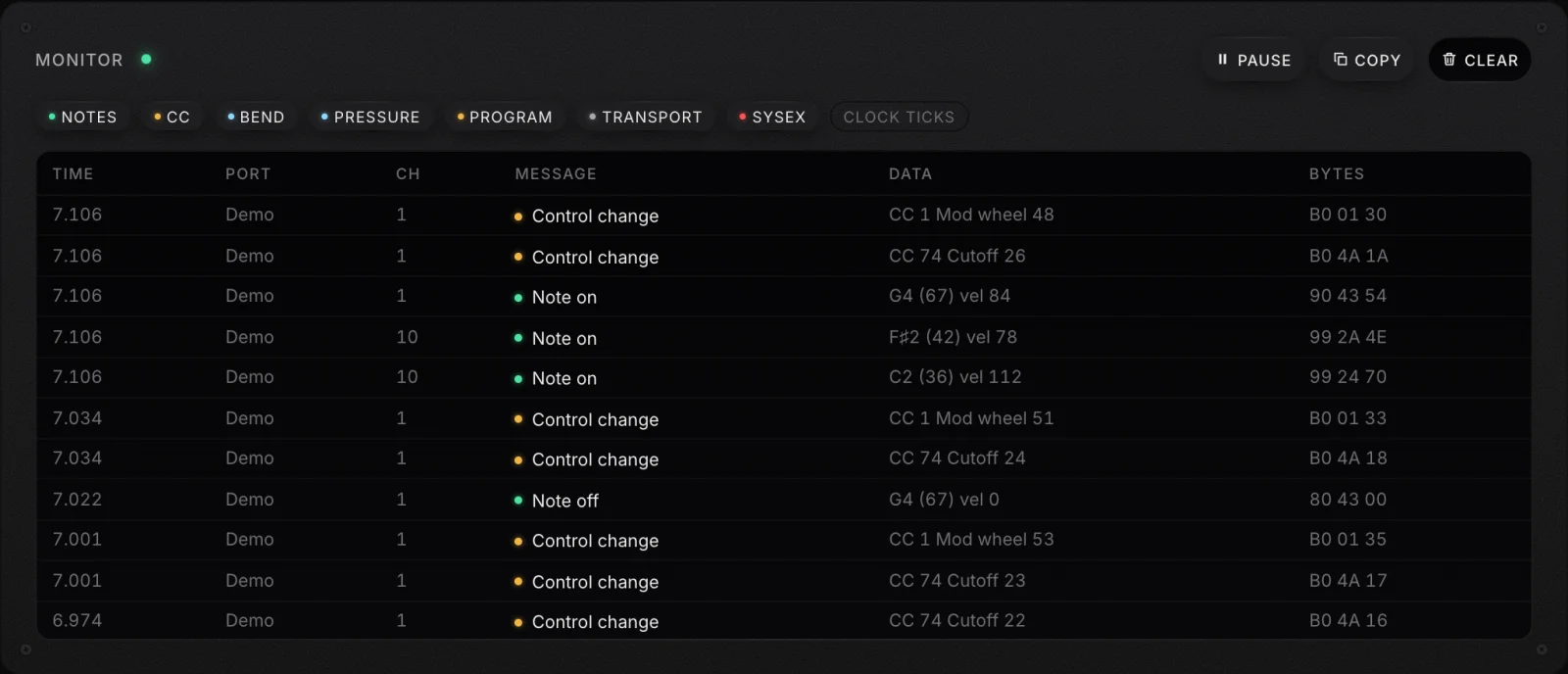
Our free MIDI tester does that split in a browser tab. Open it in Chrome, Edge or Firefox on a computer, press Connect MIDI, allow access when the browser asks, and touch the controller. Every note, knob, pad, pitch bend and clock tick it sends shows up live: the pads light, the knobs turn, the monitor lists each message with its channel and raw bytes, and a clock readout shows the tempo if the controller sends MIDI clock. It listens without the system-exclusive permission, so it cannot change anything on the device, and nothing leaves the computer.
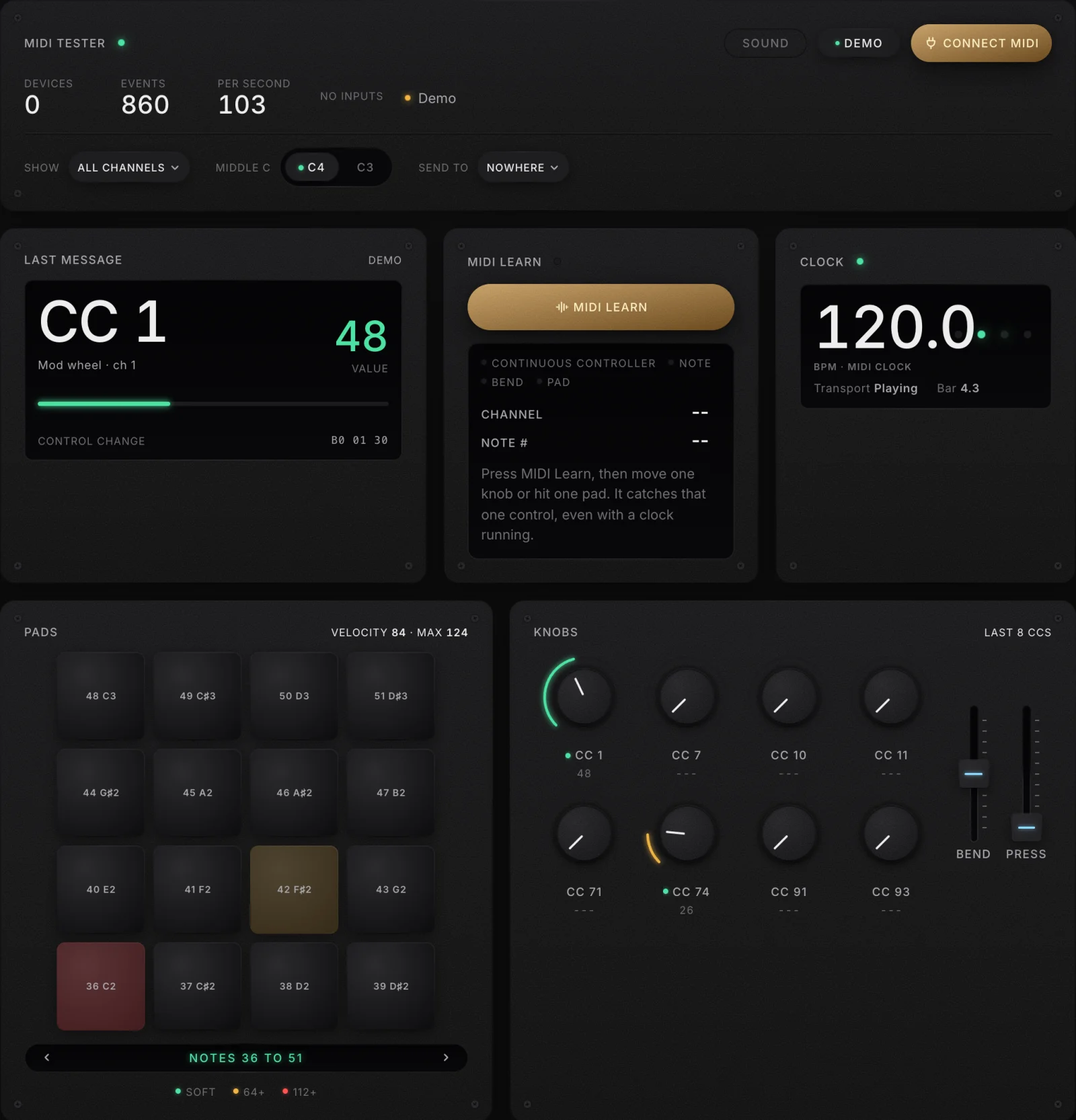
- Messages appear. The controller, cable and operating system are fine. Skip to the section on your DAW.
- The device is listed but nothing appears when you touch it. Check the controller's own mode and channel settings, covered below.
- The device is not listed at all. Start with the physical checks, then the operating system.
Why the browser might not see MIDI at all
Browser support is not universal, and it catches people out. According to MDN's compatibility data, the Web MIDI API works in Chrome from version 43, Edge from 79, Opera and Chrome on Android; Firefox supports it from version 108 behind a site permission add-on it asks you to install; Safari and every browser on iPhone and iPad do not support it. Web MIDI also needs a secure page and your explicit permission. Since Chrome 124, Chrome asks for permission for every use of MIDI, not only for system-exclusive messages, with a prompt about controlling and reprogramming MIDI devices; you can change the answer later in the site settings. If you clicked Block once, that is why the tester sees nothing.
Symptoms and their usual causes
| What you see | Usual cause | First thing to try |
|---|---|---|
| The controller lights up but no computer sees it | A charge-only cable, a hub, or a dismissed accessory prompt on a Mac | A data cable straight into the computer |
| The system sees it, the DAW does not | The input is not enabled in the DAW's MIDI settings | The switch in the table further down |
| The DAW sees it, the instrument is silent | The track is not armed, or is listening to another input | Arm the track and set its input to the controller |
| Keys work, pads or knobs do not | Pads on another channel, or knobs sending CCs nothing listens to | Read the channel and number in the tester |
| It works in one program, not in two at once | The old single-program limit on Windows | Close the other program, or use the new Windows MIDI stack |
| Tempo jumps around on its own | The controller sends MIDI clock and the DAW follows it | Turn off clock sync for that input |
| A note keeps sounding after you let go | A lost note-off message | Send an all-notes-off; in Logic, double-click the MIDI activity display |
Start with the physical layer: cable, port and power
Controller makers agree on this more than on anything else. Akai's support article says that swapping the cable, the port or the computer solves about 95 percent of cases. Arturia advises avoiding hubs, extension cables and adapters, and using a powered hub, or one that supports Power Delivery, if you must use one. Ableton's own article on controllers freezing or losing connection gives the same list: check the cable, plug straight into the computer rather than a hub, try a different port, and use only powered hubs.
- Swap the cable first. Many USB cables that came with phones and power banks carry charge but not data. A controller that lights up but is never recognised often has a charge-only cable.
- Plug straight into the computer. Unpowered hubs and long extension cables are the second most common fault. A bus-powered controller draws its power from the port; the MIDI Association notes that bus-powered devices may need a powered hub.
- Try another port. Arturia suggests trying both USB 2 and USB 3 ports, because some controllers behave differently on each.
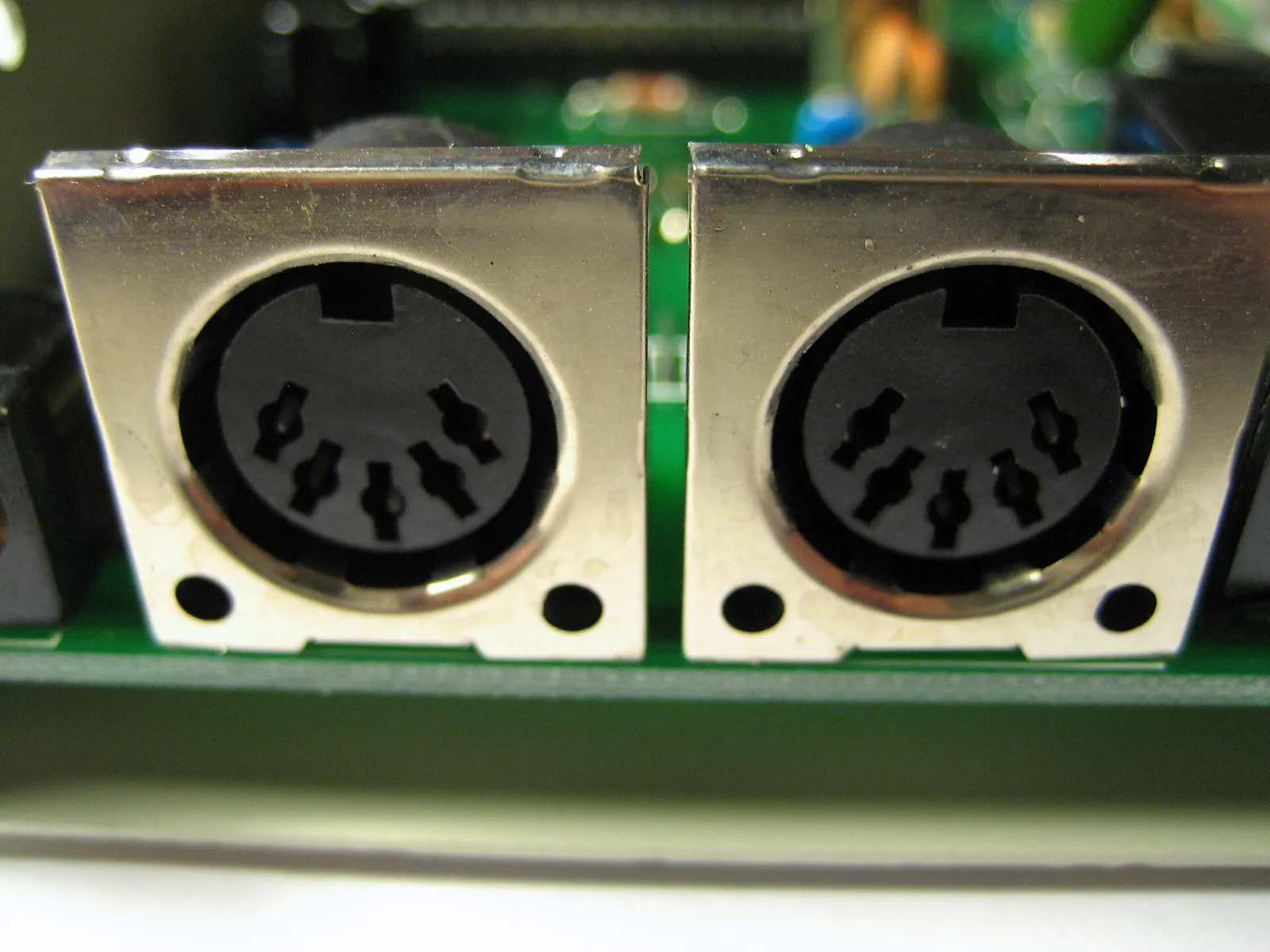
- On five-pin DIN MIDI, check the direction. The controller's MIDI Out goes to the interface's MIDI In. Reversed cables are the classic DIN mistake, and a DIN connection needs a MIDI interface between it and the computer.
The Mac prompt that looks like a broken cable
On Mac laptops with Apple silicon, a new USB accessory has to be approved before it can exchange data. Apple's support page explains that if you choose Don't Allow, the accessory can still charge but will not connect for data, and that the setting lives in System Settings, Privacy & Security, under Allow accessories to connect. A controller that lights up but never appears after you dismissed that prompt is not broken: allow it there.
On a Mac: Audio MIDI Setup shows whether macOS sees it
Every Mac has a built-in view of what the system sees. Open Audio MIDI Setup from the Utilities folder, then choose Window, Show MIDI Studio.
- Look for the controller in the window. If it is there and not dimmed, macOS sees it, and any problem is in your software.
- If it is dimmed, Apple's guide says the device may be turned off or disconnected. Double-click it, check that Device is online is ticked, click Apply, and reconnect it if that does not help.
- If it is missing, click Rescan MIDI in the toolbar, which looks again for devices that are connected and on but not shown. Apple's guide also says to check that the device is powered and that any software its maker requires is installed. A device you deleted from the window only comes back after a rescan.
- For a Bluetooth controller, click Configure Bluetooth, put the controller in pairing mode, select it and click Connect.
Novation's support article adds one more step that clears up stubborn cases: create a new configuration in MIDI Studio, which starts the device list fresh. And System Information, under USB, shows whether the controller appears on the USB bus at all, which separates a cable problem from a MIDI one.
On Windows: Device Manager, the one-app limit and the new MIDI stack
Controller makers point to Device Manager as the first check on Windows: the controller should appear under Sound, video and game controllers, and Serato's troubleshooting guide also mentions Universal Serial Bus controllers. If it is listed without a warning, Windows sees it.
Windows has one limit that caused more confusion than any other. Microsoft's own documentation describes the old Windows MIDI stack's inability for more than one application to use a device without special drivers. Open a DJ program and a DAW together, and the second one could not use the controller at all. Many older guides, including Berklee Online's, explain this as Windows giving the device to whichever program opened first.
That limit is going away. Microsoft's new Windows MIDI Services makes every MIDI port multi-client regardless of the driver or program, and its documentation says it has arrived for supported Windows 11 releases, with a phased rollout that Microsoft's official blog announced in February 2026. The rollout has known issues that Microsoft lists itself: virtual ports sometimes do not appear, devices with identical names can connect the wrong one, and old Korg drivers conflict with the new stack and should be removed. Arturia's support article adds a fix for stubborn cases: set the Windows MIDI Service to start automatically in the services list, or restart it.
Bluetooth MIDI on Windows is still limited. Microsoft's developer blog explains that Bluetooth LE MIDI has worked only for programs built on the newer Windows MIDI API since Windows 10's Anniversary Update, and the new stack lists Bluetooth MIDI 1.0 as backlog work. A cable is the reliable choice on Windows for now.
In your DAW: the one setting each program hides
If the tester and the operating system both see the controller, the fault is almost always one switch in the music software. This is where each program puts it, according to its own manual.
| Software | Where to look | The switch people miss |
|---|---|---|
| Ableton Live | Settings, Link, Tempo & MIDI | Turn on Track and Remote for the controller's input; on the MIDI track, set MIDI From to the controller or All Ins, set Monitor to In or Auto, and arm the track |
| Logic Pro | The control bar's LCD set to Custom shows MIDI activity | Settings, MIDI, General has Reset All MIDI Drivers, which Apple says can help with MIDI communication problems |
| GarageBand | Just connect the controller | Apple lists no setting inside GarageBand; install a driver only if the maker says to |
| FL Studio | Options, MIDI settings, or F10 | Select the device and click Enable; give each device its own port number; Refresh device list finds one added after launch |
| REAPER | Preferences, Audio, MIDI Devices | Enable the device's input; Actions, Reset all MIDI devices; the "cannot be opened" error means another program has it |
Every one of these programs also shows incoming MIDI somewhere. Ableton's manual says the control bar's MIDI indicators flash whenever Live recognises an incoming message; FL Studio's MIDI activity light on the main panel blinks with each message; Logic's display shows the last message received. If that indicator moves when you touch the controller, the program hears it, and the problem is routing inside the project: the wrong track selected, the track not armed, or an instrument that is not loaded.
Stuck notes and a jumping tempo
Two problems look like a broken controller and are not. A note that keeps sounding after you release the key usually means a note-off message went missing, often when a cable was bumped mid-note. Most programs have a panic command that sends note-off on every channel; Apple's Logic guide says double-clicking the MIDI activity display does exactly that. A tempo that drifts or jumps on its own usually means the controller sends MIDI clock and the DAW is set to follow it; the fix is in the next paragraph.
One more Ableton detail from its own FAQ: turn on Sync only if you need MIDI clock. A controller that sends clock with Sync on can pull Live's tempo around in ways that look like a malfunction.
It connects but nothing responds: channels, modes and mappings
A controller can be seen by everything and still do nothing useful. These are the causes that remain once the cable, the system and the software switch are ruled out.
- The wrong channel. MIDI has 16 channels, and the MIDI Association's basics are blunt: a device set to a different channel will not respond. Many controllers send their pads on a different channel from their keys, often channel 10, the drum channel in General MIDI. The tester's monitor shows the channel of every message, which settles this in seconds.
- The controller is in another mode. Many controllers have modes for specific programs, a DAW mode, a user mode, a preset, and some send nothing useful until the matching script is selected in the software. Check the controller's display or manual for the mode, then match it in the program.
- The knob sends a CC nothing is mapped to. A knob sending CC 74 does nothing until something listens to CC 74. The tester shows the exact number, and MIDI Learn in your software is the fastest way to map it.
- Two things are fighting over it. A controller mapped through a control surface script and manually at the same time can behave strangely. Ableton's article recommends only one control surface per controller.
On iPad and iPhone: adapters, power and Bluetooth
Mobile devices add two constraints: no drivers, and limited power. Class compliance solves the first. The MIDI Association explains that a class-compliant USB MIDI device needs no extra software, which is why it works on iOS, where extra drivers are not allowed.
- USB-C iPads and iPhones. Apple's Logic Pro for iPad guide says a Core MIDI compliant device appears automatically when connected to the USB-C port.
- Lightning models. Apple's camera adapters support audio and MIDI devices. If you see a message that the accessory uses too much power, Apple suggests a powered hub or the Lightning to USB 3 adapter with power connected, and notes that some MIDI devices need an external power supply.
- Bluetooth MIDI. On iPad and iPhone, a Bluetooth MIDI controller is added inside the app, not in the system settings: Apple's guide says any Bluetooth MIDI device needs to be added manually, and GarageBand for iPad has it under Settings, Advanced, Bluetooth MIDI Devices.
Our app, ImmerGround, reads class-compliant controllers over USB-C or Bluetooth on iPhone, iPad and Mac, and uses them to fire visual effects: notes, CCs, pad hits and pitch bend. Its MIDI Learn waits for you to move a control and maps it, with a short capture window so a knob that also sends a note is read as the knob. The MIDI tester's Learn panel works the same way, so you can check what a control will map to before opening the app.
Where the usual advice breaks: reinstalling drivers is rarely the fix
The first suggestion in many forums is to reinstall drivers. For most modern controllers there is nothing to reinstall: a class-compliant controller uses the operating system's own MIDI support, and the MIDI Association describes that as needing no external software. Reinstalling a DAW or a driver takes an hour and usually changes nothing, because the fault was a cable, a port, a dismissed permission prompt or a switch in the software's settings.
- Test before you reinstall. A minute in the MIDI tester tells you which half of the chain is broken.
- Old advice about Windows is going stale. "Open the DAW first" was a workaround for the single-program limit that Windows MIDI Services removes. If you are on a current Windows 11 build with the new stack, that rule no longer applies.
- Remove, do not add, old drivers. Microsoft's own known-issues list asks Korg users to uninstall old drivers that conflict with the new stack. Sometimes the fix is less software, not more.
One habit saves hours: keep a known-good test. When everything works, open the MIDI tester, touch every control and note what each sends. The next time something breaks, the same test tells you in a minute whether the controller changed or the setup did.
The honest limit of any checklist is the controller itself. If it fails on two computers, with two cables, in the tester and in the software, it may be faulty, and the maker's support is the next step. The tester's monitor, with the exact messages or the lack of them, is useful evidence to send them.
Where to get it: free tools
- MIDI tester. Free, in Chrome, Edge or Firefox on a computer; not Safari, and not on iPhone or iPad. Every note, CC, pad, pitch bend, aftertouch, program change and clock tick, a monitor with raw bytes, MIDI Learn, and a demo if you have no controller to hand. Nothing leaves the computer.
- BPM finder. Free, in your browser: the tempo of a song by tapping, from a file or through the mic.
- Live audio visualizer. Free, in your browser: effects that react to your mic or a song, on a clip, photo or scene, recorded up to 60 seconds with a small immer ground mark.
- ImmerGround for iPhone, iPad and Mac. Our app, free to download; ImmerGround Pro is $6.99 a week or $39.99 a year. Map a controller's pads and knobs to visual effects on your own clips and photos, with MIDI Learn.
If you are choosing a controller for visuals rather than fixing one, our guide to the best MIDI controllers for visuals covers what to buy.
What to do next
- Open the MIDI tester and touch the controller. Messages appear, or they do not: that decides which half to fix.
- If nothing appears, swap the cable and plug straight in. That fixes most cases, according to the makers themselves.
- Check the system view. Audio MIDI Setup on a Mac, Device Manager on Windows, and the accessory prompt on Apple silicon laptops.
- If the tester sees it, find your DAW's input switch. Track and Remote in Live, Enable in FL Studio, the MIDI Devices list in REAPER.
- If it connects but does nothing, read the channel and number. The monitor shows both; match them in your software or use MIDI Learn.

.jpg)
